Catalogue and grade lists
Who can do this: Administrator
Open Supplies in the sidebar. The page has three tabs:
- Catalogue: everything your school stocks.
- Grade lists: what a class of each grade should get, term by term.
- Classes: what each class actually holds, and where you issue supplies.
Think of the grade list as a shopping list and the class's stock as what is really on the shelf. Changing a grade list never changes what a class already has.
Add a supply to the catalogue
- Open the Catalogue tab.
- Press Add supply.
- Enter a Name, for example "HB Pencils", and a Description if you want one.
- Choose a Category: Stationery, Art, Classroom, Hygiene or Other.
- Choose what it is Counted in: Piece, Pack, Box, Ream, Bottle, Roll or Set.
- Set the Reorder level. A class counts as low on this supply when it has this many or fewer left.
- Press Add supply.
To change a supply later, press Edit on its row and then Save changes.
Remove a supply
Press Remove on its row, then Remove again to confirm. The supply comes off the catalogue and off every grade list.
Note
You cannot remove a supply while any class still holds some of it. The dialog tells you so.
Build a grade list
A grade list says what one class of that grade should be issued for a term. You can ask for different things in different terms.
- Open the Grade lists tab.
- Choose the Grade.
- Choose the Term. Grades that run all year round, Preschool and Infant & Toddler, show Year round instead.
- Press Add supply.
- Choose the Supply and enter the Quantity.
- Leave Reorder level blank to use the supply's usual level, or enter a number to use a different one for this grade.
- Press Add to list.
Use Edit and Remove on a row to change the list. Classes that already have supplies keep what they have.
Tip
Terms come from your fee settings. If the Term list is empty, add your terms first: see Terms, fee types and amounts.
Issue supplies to a class
- Open the Classes tab. Each class shows how many supplies it tracks, and a low badge if any are running out.
- Choose the term in Issuing for term.
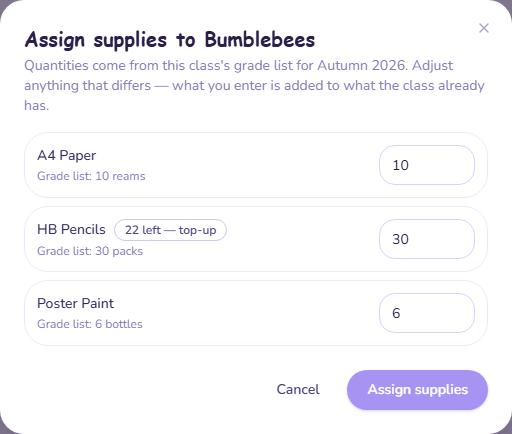
- Press Assign supplies on the class.
- The form is filled in from the class's grade list for that term. Where the class already holds a supply, it shows how many are left and a top-up badge.
- Change any quantity that should be different. Leave a quantity at 0 to skip that supply.
- Press Assign supplies.
Quantities are added, not replaced
What you enter is added to what the class already holds. Issuing next term tops the class up, and anything left over carries on into the new term.
If the form says the grade has no supply list for that term, build the grade list first. If it says it could not work out the class's grade, open the class, save it once, and try again.
See what is running low
Teachers record what their class uses (see Record what a class uses), and that comes off the class's stock. The Class inventory card on your Overview page shows each class and how many of its supplies are low. Press Review low stock or Manage to come back to Supplies.