Pay school fees
Who can do this: Parent
You can pay your children's school fees in the app, by card or bank transfer, all at once or a bit at a time. Your money goes straight to the school.
Open Billing in the sidebar. It has two tabs:
- Fees Due: what you still owe, and what is already paid.
- History: every fee for your children.
See what you owe
Fees Due lists outstanding fees for each of your children, with the fee type, term, due date and amount. An overdue fee is highlighted. A fee you have part-paid shows how much is paid and how much remains.
Below them, Already paid lists fees you have paid in full, each with a Receipt button.
If you see All fees paid!, you owe nothing right now.
Pay a fee
- Open Billing → Fees Due.
- Press Pay now on the fee.
- Check the Total, anything Already paid, and what is Outstanding.
- Enter the Amount to pay, or press Pay in full to fill in the whole balance. You can pay any amount up to the balance, so a large fee can be paid in instalments. There is a small minimum for each payment, shown under the box, unless you are clearing a smaller balance.
- Under How would you like to pay?, choose Card or Bank transfer.
- Press Pay.
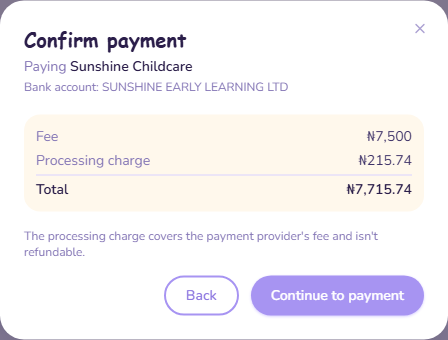
- Check the Confirm payment screen. It shows who you are paying (the school's name), the Fee, the Processing charge and the Total.
- Press Continue to payment. Paystack's secure payment window opens.
- Finish paying in that window. For a bank transfer, it gives you a one-time account to transfer to.
When the payment goes through, you see Payment received, how much you paid, and whether anything is left to pay. Press Download receipt to save your receipt, then Done.
The processing charge
Each online payment adds a processing charge, which covers the payment provider's fee. It is shown on the Confirm payment screen before you pay, so you always see the total first. The processing charge is not refundable, even if the school later refunds the fee.
Your card details are entered in Paystack's window and never reach PinkTower.
If you cannot pay online
- Pay now is not available, and it says the school hasn't set up online payments yet: the school has not connected its bank account. Ask the school how to pay.
- The fee is not in naira: only naira fees can be paid in the app. Ask the school how to pay.
- Paystack did not confirm the payment: nothing has been charged. You can try again.
Receipts
Receipts come from your school, not from PinkTower. They are headed with the school's name and contact details and say who was paid. PinkTower appears only as the service that processed the payment. Paystack also emails you its own receipt.
You get one receipt for each payment. A fee paid in three instalments has three receipts.
- Straight after paying, press Download receipt to get the receipt for that payment.
- Later, press Receipt on the fee. This always gives you the receipt for the most recent payment on that fee. If you need the receipt for each instalment, save it when you pay.
- On Fees Due, Receipt appears only on fees paid in full. For a part-paid fee, use the History tab.
A receipt can take a few seconds to appear after you pay.
History
The History tab lists every fee for your children: the student, fee, term, amount, due date and status. A part-paid fee shows how much has been paid. Use Receipt to download a receipt, and Payments & refunds to see each payment and any refund on that fee.
Overdue fees
Once a fee passes its due date, PinkTower reminds you until it is paid. A part-paid fee still goes overdue if the rest is not paid. You can choose whether these reminders reach you; see Notifications.
If you are due a refund
When the school refunds you, the money goes back to the card or account you paid with. See Refunds.