Pickup history and reports
Who can do this: Administrator Teacher Parent
Every pickup is kept: who collected the child, and when. Parents can see their own children's history. Staff can run reports for a class and download them.
- Open Pickup history in the menu.
- If you have more than one child, choose the child.
- Set From and To. The history opens on the last 90 days.
Each pickup shows the date, who collected your child and the time. A pickup made by the school bus shows the bus's name.
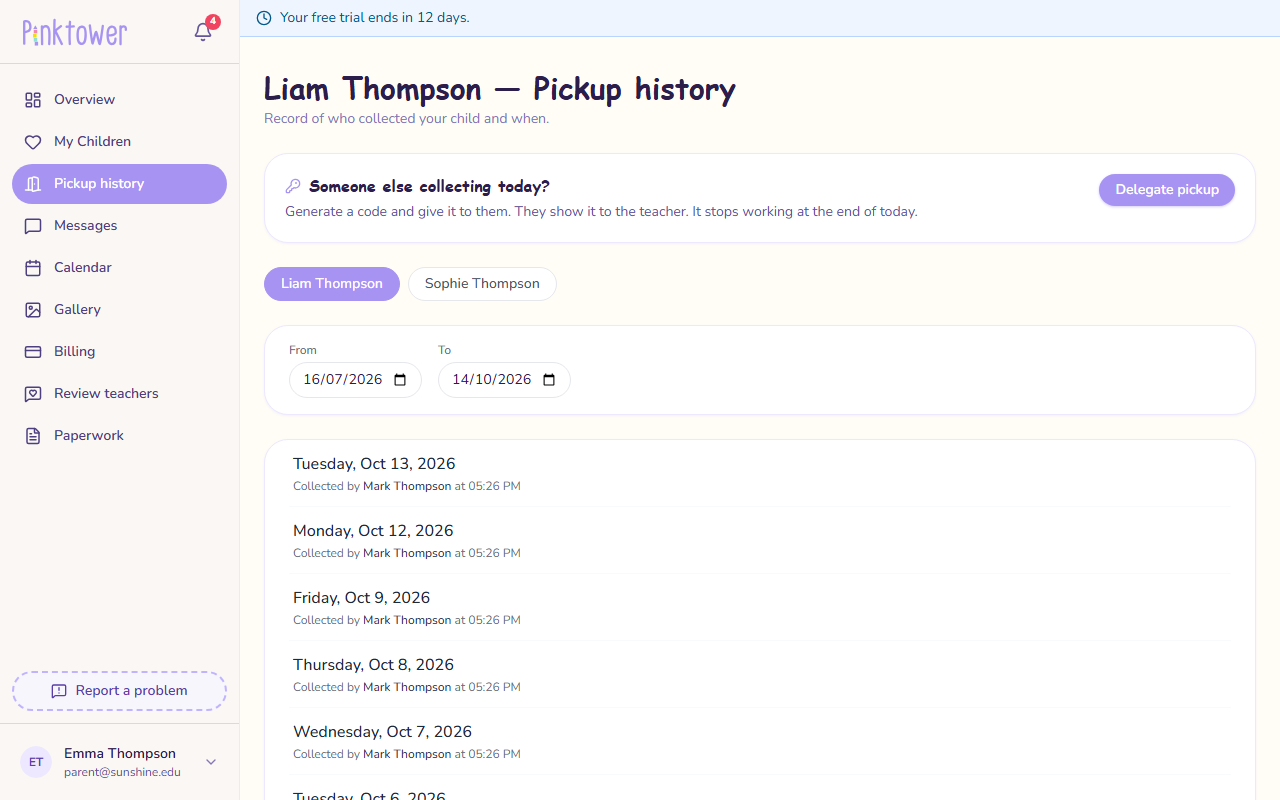
The same page is where you send someone else to collect.
- Open Pickup in the menu.
- Press View reports.
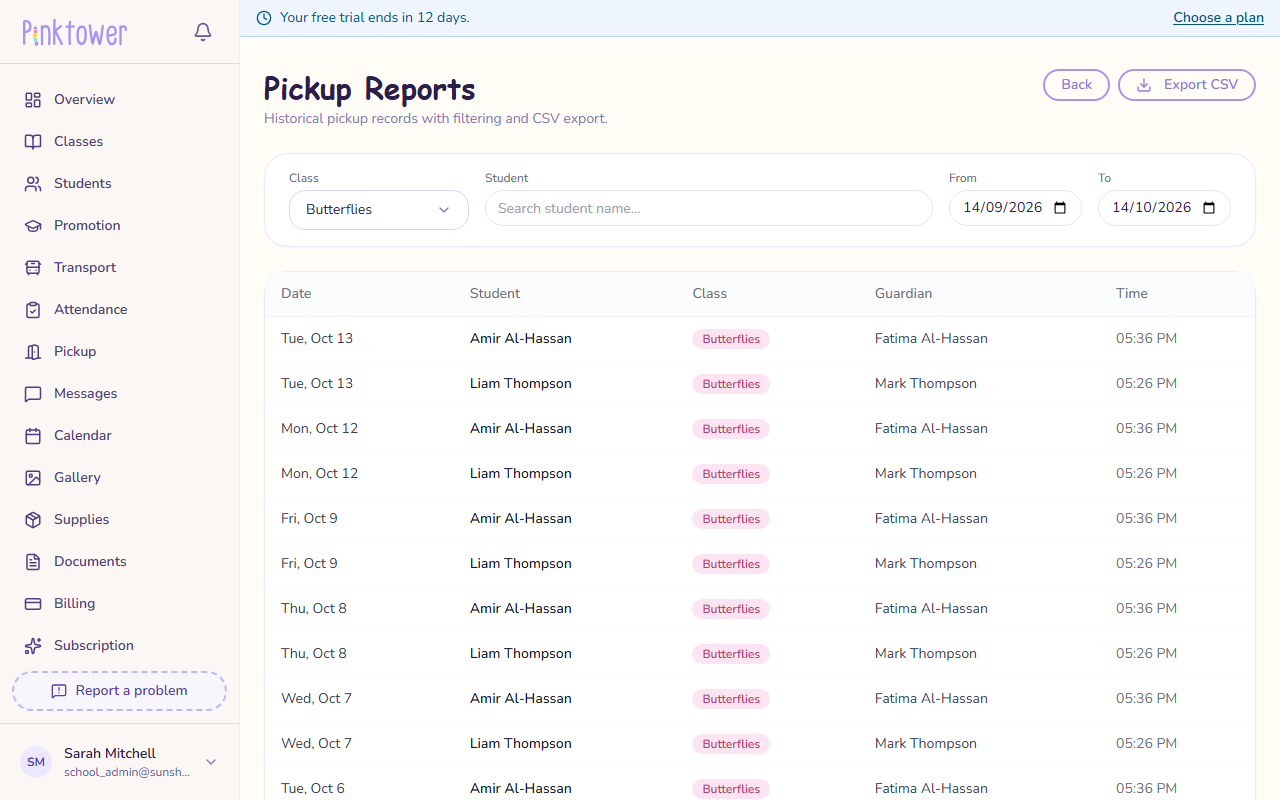
- Choose the Class.
- Set From and To. The report opens on the last 30 days.
- To find one child, type their name into Student.
The table lists each pickup with its Date, Student, Class, Guardian (the person who collected) and Time. Press Export CSV to download it as a spreadsheet file.
- Open Pickup in the menu.
- Press Reports.
- Choose the Class. The report covers one class at a time.
- Set From and To. The report opens on the last 30 days.
- To find one child, type their name into Student.
The table lists each pickup with its Date, Student, Class, Guardian (the person who collected) and Time. Press Export CSV to download it as a spreadsheet file.
A pickup cannot be changed
If a record looks wrong, it cannot be edited or deleted. Parents should contact the school office. Staff should note the correction outside PinkTower, for example in a message to the family.