Calendar, events and closures
Who can do this: Administrator Teacher Nurse Parent
The Calendar shows the school's events on a month grid, with a list of what is coming up next. Administrators create and manage events and declare the days the school is closed. Parents can volunteer to help at events. Teachers and nurses can read every published event.
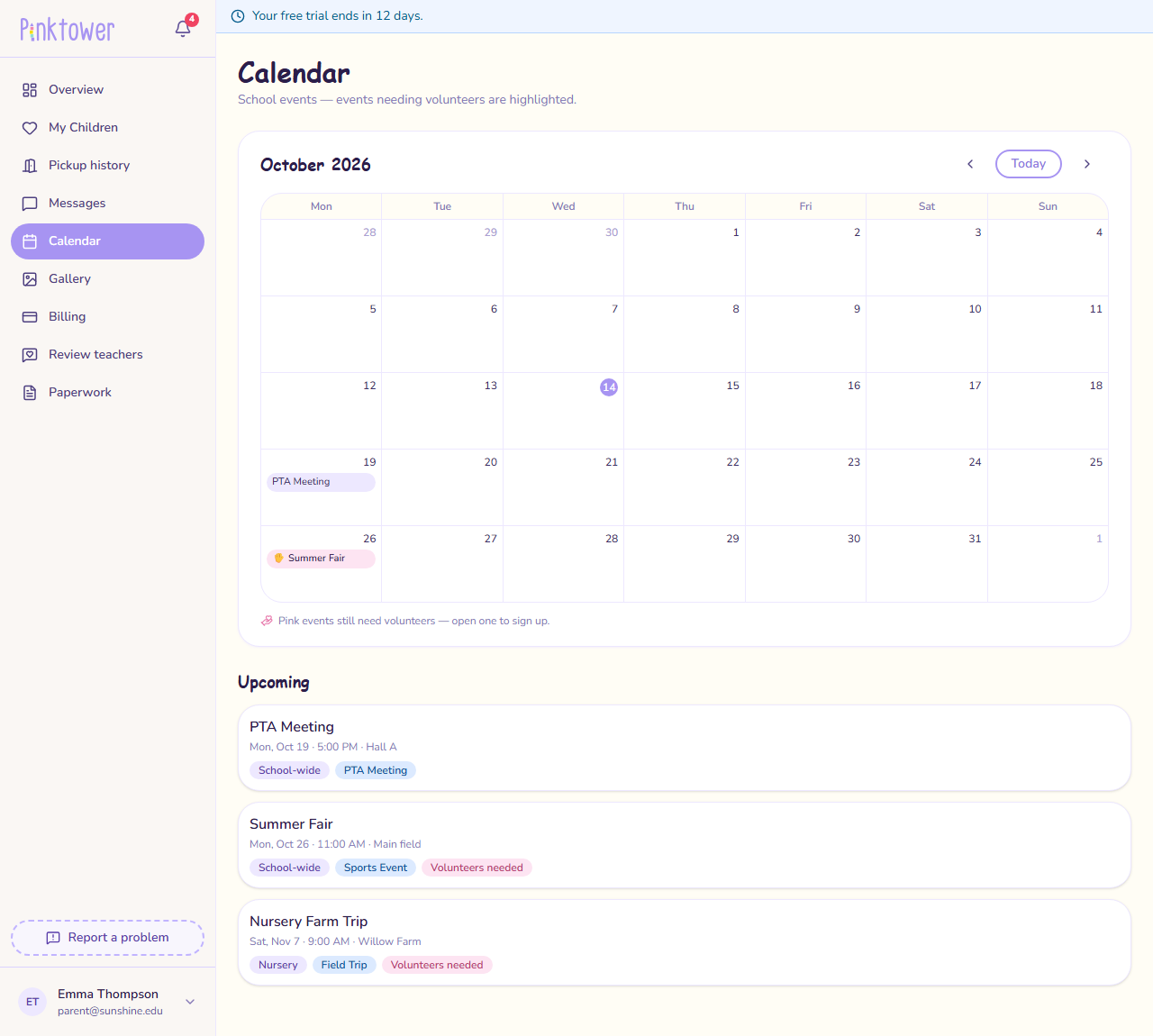
Read the calendar
- Open Calendar in the sidebar.
- Move between months with the arrows. Press Today to come back to this month.
- Press an event, on the grid or in the Upcoming list, to see its details.
On the grid:
- Events still needing volunteers are pink and marked with a raised hand.
- A cancelled event stays on the calendar, struck through.
- Days the school is closed are shaded and show the closure's name, such as Half term. Events on a closed day are still shown.
The Upcoming list shows the next eight events, each with its date and time, location, audience (School-wide, a grade or a class) and category.
You see school-wide events, and events for your children's classes and grades.
You see every published event at the school.
You see every published event at the school. Closed days are not shaded on your calendar.
You see every event, including drafts, which are marked Draft.
Create an event
Who can do this: Administrator
- On the Calendar, press Create event.
- Choose the Scope: School-wide, Grade or Class. Then choose the Grade or Class if asked.
- Enter a Title.
- Choose the Date and Time it starts. An event cannot start in the past.
- Add a Location if it helps.
- Choose a Category: PTA Meeting, Sports Event, Field Trip or Academic Event. For anything else, choose Custom… and type your own in Custom category.
- Add a Description (a short summary) and Details / information (what to bring, timings, and so on).
- If you need helpers, tick Volunteers required and add the tasks (see Volunteer tasks).
- Press Create draft.
The event is saved as a draft. Only administrators can see it until you publish it.
Events have no end time
Put the finishing time in the description if families need it.
Volunteer tasks
With Volunteers required ticked:
- Type a task, such as Refreshments table, and press the + button.
- Set how many helpers the task needs. It starts at 1.
- Repeat for each task.
You need at least one task. To remove a task, press its bin icon.
Publish an event
Who can do this: Administrator
- Press the draft event on the calendar.
- Press Publish.
Publishing makes the event visible to its audience and notifies the parents in that audience. Parents are reminded a month before and a week before.
Publish early
Reminders that would fall in the past are skipped. An event published five days ahead sends neither the month nor the week reminder, only the notice that it was published.
Edit or reschedule an event
Who can do this: Administrator
- Press the event, then press Edit.
- Change what you need.
- Press Save changes.
If you move a published event to a new date or time, the parents in its audience and any volunteers are told, and the reminders move with it.
You can add volunteer tasks or change how many helpers a task needs. Once parents have signed up for a task, you cannot remove it or set it below the number already signed up.
You can still correct the details of an event whose date has passed.
Cancel an event
Who can do this: Administrator
- Press the event, then press Cancel event.
- Press Cancel event again to confirm.
The event stays on the calendar, struck through and marked Cancelled. If it was published, the parents in its audience and any volunteers are notified, and no more reminders are sent.
Warning
A cancelled event cannot be brought back. To run it after all, create it again.
Volunteer at an event
Who can do this: Parent
An event that needs helpers lists its tasks under Volunteers needed, each showing how many places are filled, such as 1 of 3 filled.
To sign up:
- Press the event.
- Next to the task you want, press Sign up.
- Press Sign me up to confirm.
The task now says you are volunteering. You get a confirmation, and reminders a week and 24 hours before the event.
To stop volunteering:
- Press the event.
- Next to your task, press Opt out.
- Press Opt out to confirm.
Your place goes back to the pool, and the school is told.
- You can take one place per event, however many tasks it has.
- A task that is full shows full and cannot be signed up for.
- You can sign up and opt out until the event starts.
- You see how many places are filled and which one is yours. Only administrators see who has taken the other places.
Note
Volunteering is the only sign-up on an event. There is no RSVP or attendance list.
Closures: the days the school is shut
Who can do this: Administrator
A term says when your school year runs. It does not say you are closed for half term or a public holiday. A closure does.
Add a closure
- On the Calendar, press Closures.
- In What is it?, give it a name, such as Half term.
- Under Applies to, untick any grades that stay open. Every grade is ticked to start with.
- Choose the First day closed. The Last day closed fills in with the same date, which is right for a single day. Change it for a longer closure.
- For a training day, when children stay at home but staff come in, tick Staff are still expected in (a training day). Leave it unticked for a holiday.
- Press Add closure.
Preschool, and Infant and Toddler, are not offered under Applies to. Like terms, they run all year round and cannot be closed.
What a closure changes
On a closed day, for the grades it applies to:
- children are not expected, so the dashboard does not count them as absent
- nobody is chased for a late pickup that evening. See Closing time and late pickups
- the school bus does not run. See When the bus does not run
- unless Staff are still expected in is ticked, staff are not expected either, so the staff attendance figures read as closed rather than showing everyone present
Closed days are shaded on the calendar for administrators, teachers and parents.
Change or remove a closure
The School closures window lists every closure, with Staff in on training days.
- Press Deactivate to stop a closure counting while keeping a record of it. Press Activate to turn it back on.
- Press the bin icon to delete a closure.
Warning
Deleting a closure removes it at once, with no confirmation, and cannot be undone. Use Deactivate if you might want it again.