Invite staff, nurses and bus crew
Who can do this: Administrator
Everyone who works at your school joins by email invitation from Staff in the sidebar: teachers, nurses, bus drivers and conductors, and other administrators. The page lists each person with their role and status.
Parents are never invited here. A parent is added from their child's page; see Add students and guardians.
The roles you can invite
| Choose | For | What they can do |
|---|---|---|
| Teacher / Staff | Teachers and classroom staff | Attendance, pickups, messages, stories and photos for the class they are assigned to |
| Nurse | School nurses | Message parents and read children's medical documents. Not assigned to a class |
| Bus Driver | Drivers | Run the bus they are assigned to |
| Bus Conductor | Conductors | Work the bus alongside the driver, with the same permissions |
| Administrator | Other people who run the school | Everything you can do |
Administrators have full control
Inviting someone as an Administrator gives them the same control of your school as you, including fees, the bank account and the subscription.
For the full picture, see Roles and permissions.
Invite someone
- Open Staff in the sidebar.
- Press Invite user.
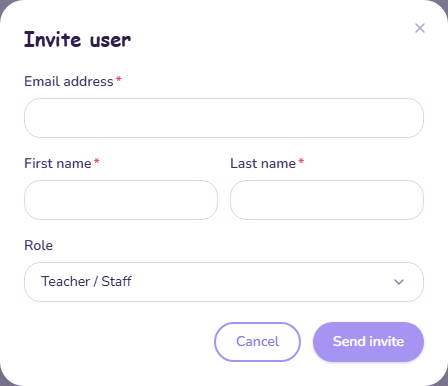
- Enter their Email address, First name and Last name.
- Choose their Role.
- Press Send invite.
They receive an email with a link to finish creating their account. Until they do, they show as Invited. Once they accept, they show as Active. What they see is described in Accept an invitation.
Teachers can do very little until they are assigned to a class. See Create classes. Bus crew need to be put on a bus. See Set up the school bus.
Pending invitations
An invitation expires after 72 hours. While someone shows as Invited, their row has two buttons:
- Resend sends a new email with a new link, valid for another 72 hours. The old link stops working.
- Cancel withdraws the invitation. Press Cancel invitation to confirm. The link stops working.
Find someone
Use the role filter (All roles, Admin, Staff, Nurse, Driver, Conductor) and the search box, which searches by name or email.
Edit, suspend or delete someone
Press Edit on the person's row. From there you can:
- change their First name and Last name;
- change their Role between Staff, Nurse, Bus Driver and Bus Conductor;
- Suspend them, which stops them signing in to your school. They show as Inactive. You can Reactivate them at any time;
- Delete them, which removes them from your school for good;
- Reset two-factor, described below.
Press Save changes to keep a name or role change.
Deleting cannot be undone
A deleted person has to be invited again to come back. Deleting a teacher also takes them off every class they taught. Suspending does not: a suspended teacher keeps their class, because you may bring them back.
Some things are protected so a school cannot lock itself out:
- You cannot suspend or delete yourself.
- Another administrator's role cannot be changed, and they cannot be suspended, from this page.
If the person also belongs to another PinkTower school, suspending or deleting them here affects your school only.
Reset someone's two-factor authentication
If someone has turned on two-factor authentication and lost their authenticator app, they cannot sign in. You can switch it off for them, so they sign in with their password alone and set it up again.
- Press Edit on their row.
- Press Reset two-factor.
- Press Reset two-factor again to confirm.
They are emailed that you did it. Their account is shared with any other PinkTower school they belong to, so the reset applies there too. Only do it when they have asked.
Parents have the same button on their child's page. See Add students and guardians.