Refunds
Who can do this: Administrator Parent
A school can refund all or part of a fee payment, for example when a child withdraws before term starts or a parent paid too much. Refunds are given by the school; PinkTower does not decide them.
The money always goes back to the parent who made the payment. It cannot be sent anywhere else. The processing charge is not refundable, because the payment provider keeps its fee, so the most you can refund is the fee itself.
Refund a payment
- Open Billing. It opens on the Payments tab.
- Find the fee and press Payments on its row.
- Find the payment and press Refund.
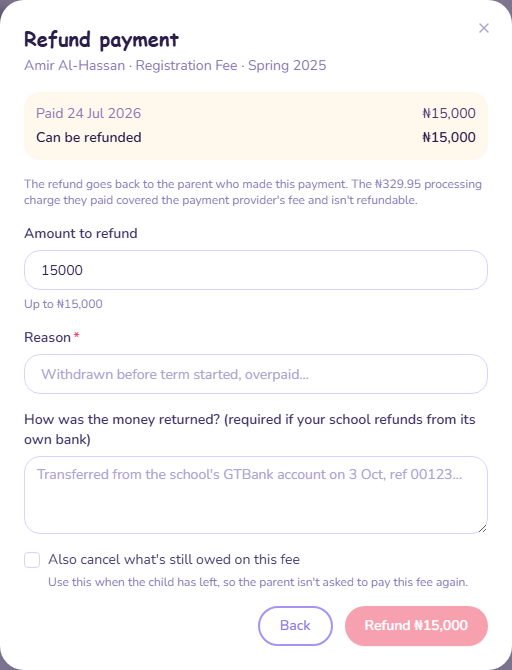
- Check Can be refunded. It shows how much of this payment is left to refund.
- Enter the Amount to refund. It starts at the full amount that can be refunded.
- Enter a Reason. The parent sees it.
- Under How was the money returned?, say how and when the money was sent back, for example "Transferred from the school's account on 3 October, reference 00123". This is required if your school returns the money from its own bank.
- If the family should no longer owe this fee, tick Also cancel what's still owed on this fee. Use this when the child has left.
- Press Refund.
A refunded amount is owed again unless you cancel it
If you do not tick Also cancel what's still owed on this fee, the amount you refund goes back onto what the family owes, and they will be asked to pay it again.
The parent is told about the refund either way.
Returning the money yourself
For now, your school sends the money back to the parent from its own bank account, then records the refund here with a note saying how and when. The refund then shows as Refunded by school. If online refunds are switched on for your school in future, PinkTower will send the money back to the parent's card or account for you, and the refund shows Pending, Processing and then Refunded.
Refund statuses
The Refunds list under a fee's payments shows each refund with its status:
| Status | Meaning |
|---|---|
| Refunded by school | Your school returned the money itself and recorded it. |
| Pending | The refund has been started. |
| Processing | The payment provider is sending the money back. |
| Needs bank details | The money could not go back the way the parent paid. The parent has been asked for a bank account. |
| Refunded | The money has been sent back. |
| Failed | The refund did not go through, and the amount is back on the fee. |
Getting a refund
Refunds are given by your school. If you think you are owed one, ask the school.
When the school refunds you:
- you are told when the refund is issued, with the school's reason;
- the money goes back to the card or account you paid with, or the school sends it to you directly and tells you how;
- the processing charge you paid is not refunded.
A refund sent back to your card or account can take several working days to reach you.
To see a refund, open Billing → History and press Payments & refunds on the fee.
If you are asked for your bank account
Sometimes, usually when you paid by bank transfer, the money cannot be sent back the way you paid. You then see a message that the refund is waiting for your bank details.
- Open Billing → History.
- Press Payments & refunds on the fee.
- Press Add the bank account for your refund.
- Choose your Bank and enter your Account number.
- Press Check account and check the account name.
- Press Yes, send my refund here.
Only the parent who made the payment can do this.