Attendance reports and history
Who can do this: Administrator Teacher Parent
Staff can see a class's attendance over any period. Parents can see their own child's record, day by day.
A class report
Teachers see reports for the classes they teach. Administrators see every class.
- Open Attendance in the menu.
- Press View reports.
- Choose the Class.
- Set From and To. The report opens on the last 30 days.
The top of the report shows the share of marks that were Present, Late, Absent and Excused over the period. Below that, a table lists each day with its Total, the count for each status, Unmarked, and Present %, with a Totals row at the bottom.
Press Back to attendance to return to the register.
Note
A mark removed with Clear is not counted. The report shows only what is on the register now.
Your child's attendance history
- Open Overview.
- On your child's card, tap the percentage marked last 30 days.
- If you have more than one child, choose the child at the top of the page.
- Set From and To. The history opens on the last 90 days.
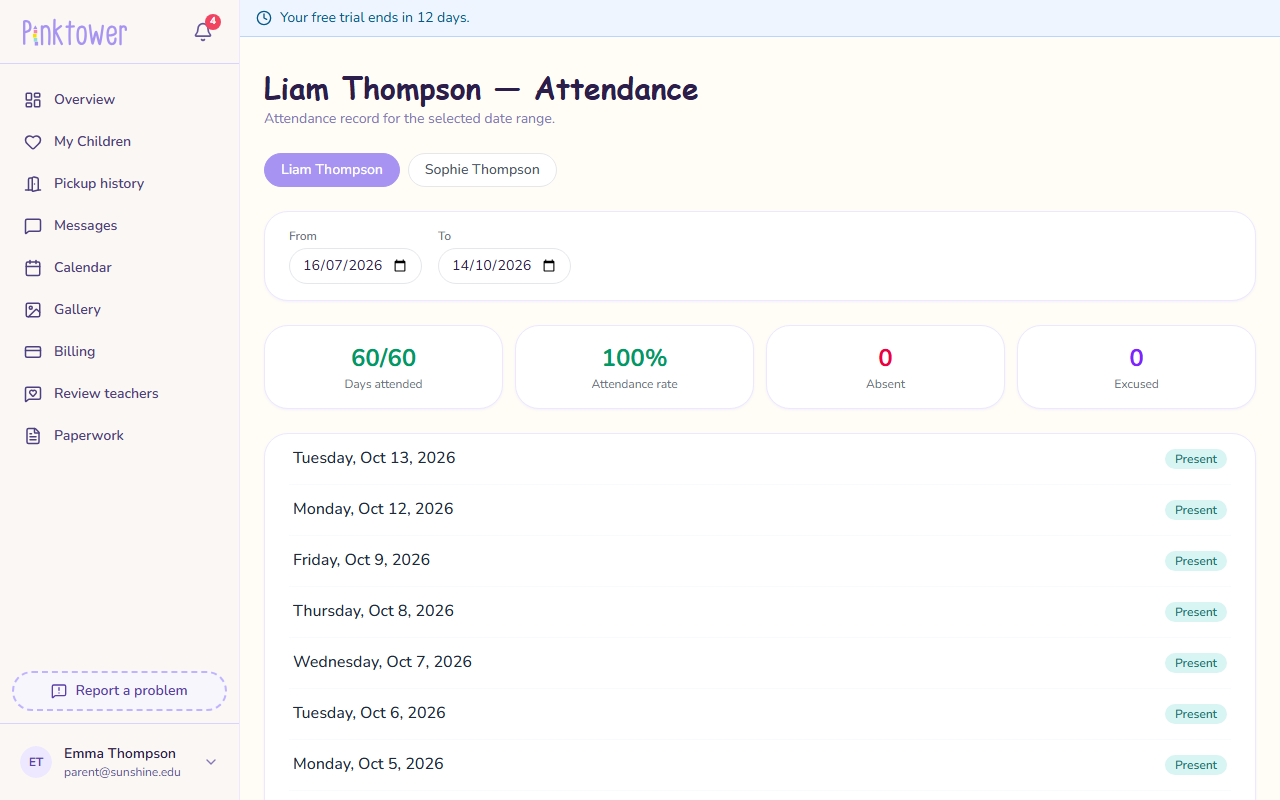
The top of the page shows Days attended, Attendance rate, Absent and Excused. Below, each school day is listed with its status. A late day shows the time your child arrived, and an absent day shows the reason, if the teacher gave one.
Tapping an absence notification also opens your child's history.
Your child's card on Overview also shows this week at a glance, and today's status: Present, Late, Absent, Excused or Not marked yet.
If a day looks wrong, contact the school. Only staff can change the register.