Add your contact details
Who can do this: Administrator Teacher Nurse Bus crew Parent
Your school needs a way to reach you, and an email address alone is not enough when a child is unwell. So the first time you sign in, PinkTower shows an Add your contact details page in place of the app. Nothing else opens until you have saved a phone number and an address.
This applies to everyone, whatever their role, including people who joined before PinkTower started asking.
Add your details
- Sign in. The Add your contact details page appears.
- Enter your Phone number in international format: a
+, your country code, then your number without the leading0. For a Nigerian number,08012345678becomes+2348012345678. - Fill in your address: Address line 1, City, State / Province and Country. Country starts as Nigeria; change it if you live elsewhere.
- If you want, add Address line 2 and a Postal code. Both are optional.
- Press Save and continue.
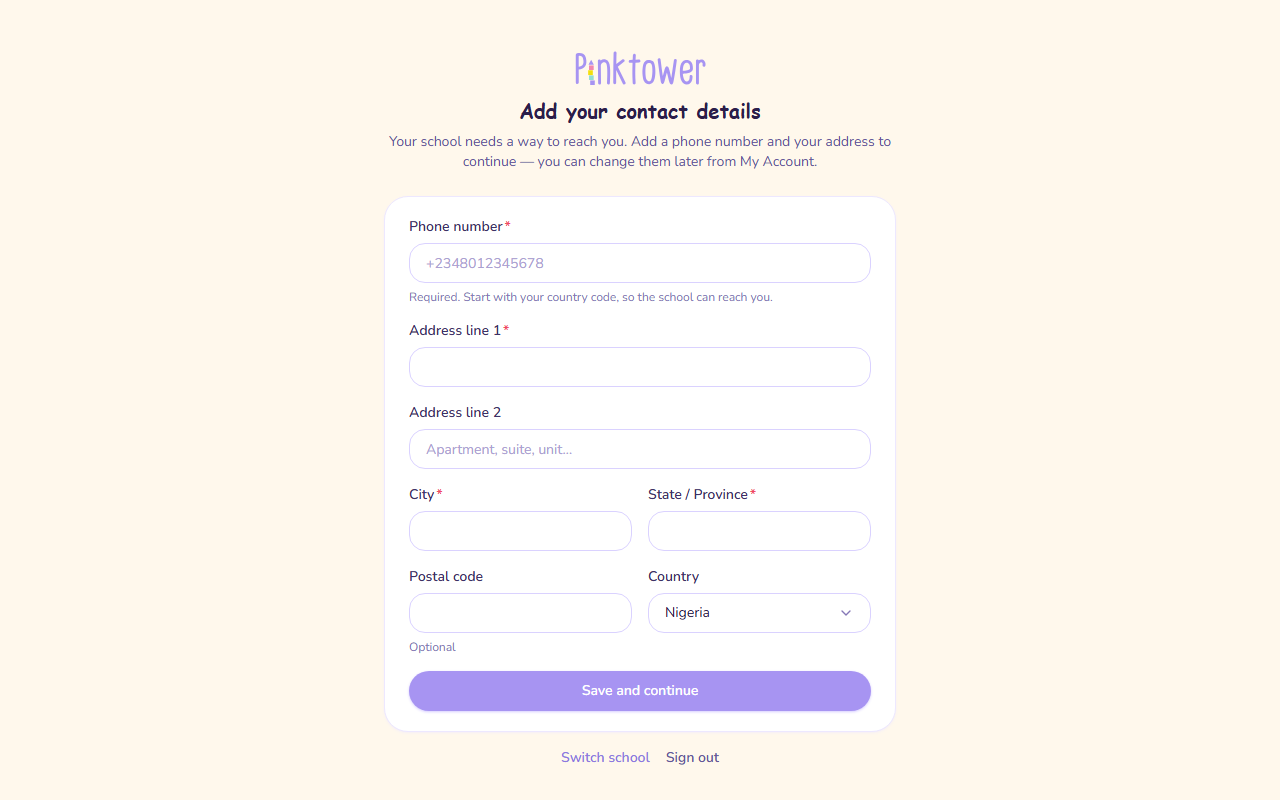
PinkTower then opens the page you were going to. If this is your first visit, the short welcome tour starts now (see Find your way around).
Phone number format
The phone number must start with + and contain only digits after it, with no spaces, dashes or
brackets.
| You typed | Accepted? | Type instead |
|---|---|---|
08012345678 |
No | +2348012345678 |
+234 801 234 5678 |
No | +2348012345678 |
2348012345678 |
No | +2348012345678 |
+2348012345678 |
Yes | |
+447700900123 |
Yes |
If the number is not in this format, you see "Start with your country code, e.g. +2348012345678" under the field.
Good to know
- Your details are kept per school. If you belong to more than one school, each one asks for your details the first time you open it, and each school sees only what you gave it.
- You are never stuck. Sign out is always at the bottom of the page, and so is Switch school if you belong to more than one.
- You can change them later from My Account, but you cannot remove them. See Your account and security.