Messages
Who can do this: Administrator Teacher Nurse Parent
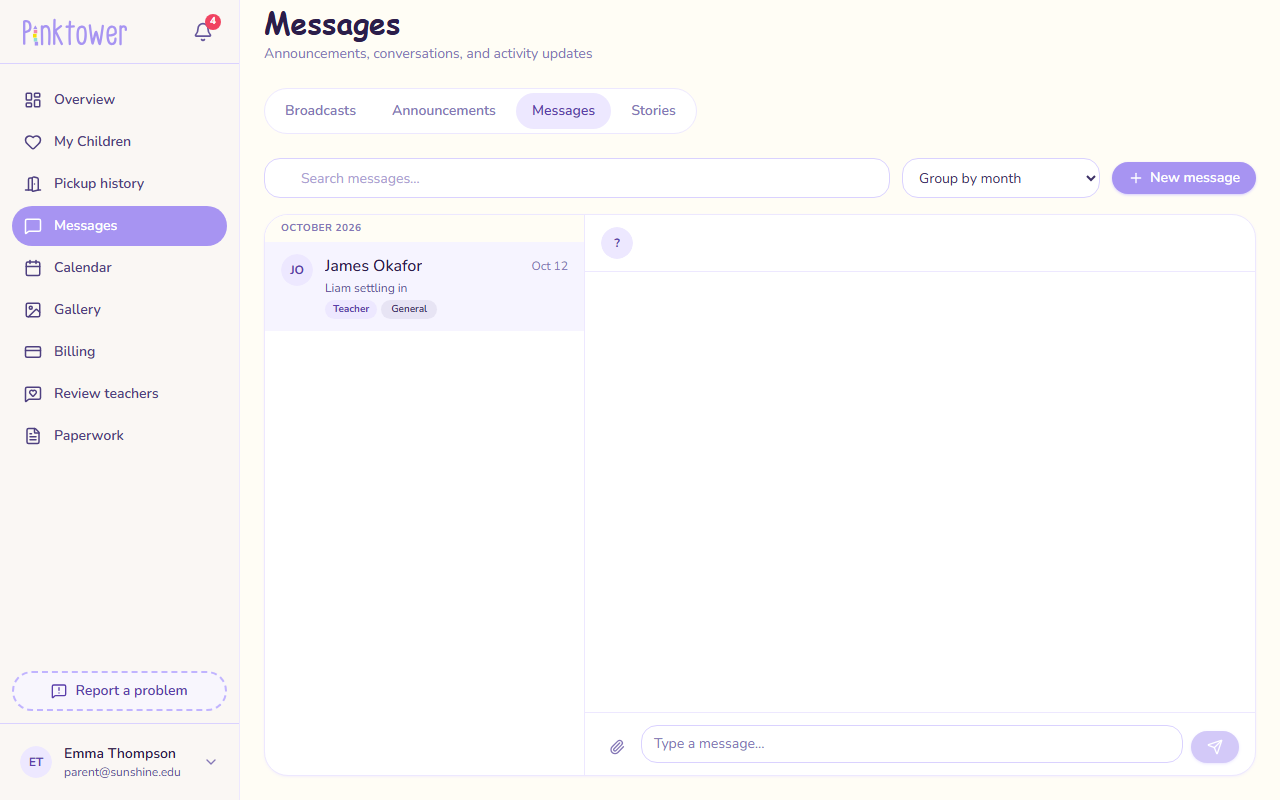
The Messages tab on the Messages page holds private one-to-one conversations between school staff and parents. Only the two people in a conversation can read it. The one exception is that an administrator can read staff conversations with parents, read-only (see Reading staff conversations).
Who can message whom
Conversations are always between a member of staff and a parent. Staff cannot message each other here, and parents cannot message other parents.
| You are | You can message |
|---|---|
| Parent | Your own children's teachers, and any nurse or administrator at the school |
| Teacher | The parents of children in your classes |
| Nurse | Any parent at the school |
| Administrator | Any parent at the school |
A teacher who does not teach your child is not in your list
This is deliberate. Every parent can always reach the office and the nurse, whatever class their child is in. A conversation that has already started keeps working, whoever started it.
Start a new conversation
- Open Messages in the sidebar, then the Messages tab.
- Press New message.
- In To, choose the person. Each name shows whether they are a Teacher, Administrator or Nurse.
- Choose a Category (see Categories).
- Add a Subject (optional) if it helps.
- Write your Message.
- To add a file, press Attach a file (see Attachments).
- Press Send.
- Open Messages in the sidebar, then the Messages tab.
- Press New message.
- In Send to, choose A specific parent or A whole class.
- Choose the Parent, or the Class. You can only choose classes you teach.
- Choose a Category, and add a Subject (optional) if it helps.
- Write your Message, and press Attach a file if you need to.
- Press Send.
- Open Messages in the sidebar, then the Messages tab.
- Press New message.
- In Send to, choose A specific parent or Every parent (school-wide).
- If you chose a specific parent, pick them from the Parent list.
- Choose a Category. Health is usually the right one.
- Add a Subject (optional), write your Message, and press Attach a file if you need to.
- Press Send.
Every parent (school-wide) suits news the whole school needs at once, such as an outbreak notice or an immunisation round.
- Open Messages in the sidebar, then the Messages tab.
- Press New message.
- In Send to, choose A specific parent, A whole class, A whole grade or Every parent (school-wide).
- Choose the Parent, Class or Grade, if asked.
- Choose a Category, and add a Subject (optional) if it helps.
- Write your Message, and press Attach a file if you need to.
- Press Send.
Sending to a group still gives everyone a private conversation
When you send to a whole class, a whole grade or every parent, each parent receives the message in their own private conversation with you. When they reply, only you see it. Nobody's reply goes to the group.
Reply in a conversation
- Choose the conversation from the list on the left.
- Type in the box at the bottom.
- Press Enter or the send button. To start a new line without sending, press Shift+Enter.
To attach a file to a reply, press the paperclip next to the box.
If a message could not be sent, PinkTower says so and keeps your text in the box. Check your connection and send it again.
Categories
Every new conversation is tagged with one category, so it is easy to see what it is about: General, Health, Attendance, Behaviour, Billing or Academic. The category shows under the person's name in the conversation list.
Attachments
You can attach an image, a PDF or a Word document, up to 10 MB each. A file larger than that is refused. To open an attachment someone sent you, press its name in the conversation.
Find a conversation
- Type in Search messages… to search by name, subject, category or message text.
- Use the grouping list to sort the conversation list: Group by month (the usual view), Group by sender (Teacher, Administrator, Nurse or Parent) or Group by read status.
Unread conversations show a dot and a name in bold. Opening one marks it read.
Reading staff conversations (administrators)
Administrators can read every conversation between staff and parents at the school, for supervision.
- On the Messages tab, press All messages.
- Choose a conversation to read it. It is marked Read-only oversight view: you cannot reply.
- Press My messages to go back to your own conversations.
Reading a conversation this way does not mark it as read for the people in it.