Record a pickup
Who can do this: Administrator Teacher
When someone comes to collect a child, record it in PinkTower before the child leaves. The child's parents are told who collected them, and the child is no longer counted as on the premises.
Teachers record pickups for the classes they teach. Administrators can record for any class.
A pickup cannot be undone
Once you press Confirm pickup, the record is final. There is no way to delete or change it anywhere in PinkTower. Check that you have chosen the right child and the right person before you confirm.
Before you start
Only children marked Present or Late on today's register appear on the pickup screen. If a class shows nobody, take the register first. See Take attendance.
Recording a pickup needs an internet connection. Unlike the register, it cannot be saved offline.
Open the pickup screen
- Open Pickup in the menu.
- Choose the Class if you teach more than one.
- Open Pickup in the menu. This opens the Pickup Dashboard, with every class.
- On the class card, press Record pickups →.
To go back, press Back to dashboard.
The class is split into Awaiting pickup and Picked up. The line above them shows how many are picked up and how many are still waiting, and today's closing time.
Record the pickup
- Find the child under Awaiting pickup and press Record pickup.
- Choose the person collecting the child from the list. Guardians carry a Parent badge. Other authorised contacts show their relationship.
- Press Confirm pickup.
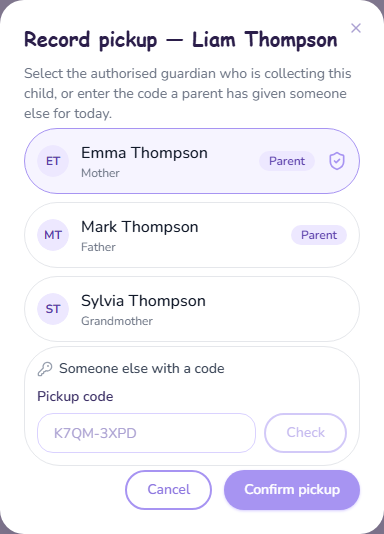
The child moves to Picked up, with the name of the person who collected them and the time.
If the person is not on the list, do not release the child. Check with the office or the family. See Who can collect a child.
Someone arrives with a pickup code
A parent can send someone else for the day with a code such as K7QM-3XPD. That person is
never on the list.
- Press Record pickup on the child.
- Under Someone else with a code, type the code into Pickup code.
- Press Check.
- Read what PinkTower shows you: the person's name, which parent sent them, their phone number if the parent gave one, and how many other children the same code covers.
- Check the person in front of you against those details, for example against their ID.
- Press Confirm pickup.
If the details do not match, press Use a different collector, or Cancel, and contact the family.
If the code is wrong, expired, cancelled or for a different child, PinkTower says That code is not valid for collecting this child today. The message is the same in every case.
A code that covers more than one child is checked and confirmed for each child separately.
Rules PinkTower enforces
- The child must be marked Present or Late today.
- The person collecting must be one of the child's guardians, an authorised contact, or someone with a valid code for that child.
- A child can be recorded as picked up once a day. A second attempt is refused with Student has already been picked up today.
Children who go home on the school bus
A child who gets on the school bus home is recorded as picked up automatically, with the bus's name in place of a person's. They move to Picked up without you doing anything. If a parent collected the child at the gate before the bus left, the parent's pickup stands. See Follow your child on the bus.