Payments, receipts and overdue fees
Who can do this: Administrator
The Payments tab under Billing shows every fee your school has charged, what has been paid against it, and what is still owed. Parents pay from their own Billing page; see Pay school fees.
Review payment records
- Open Billing in the sidebar. It opens on the Payments tab.
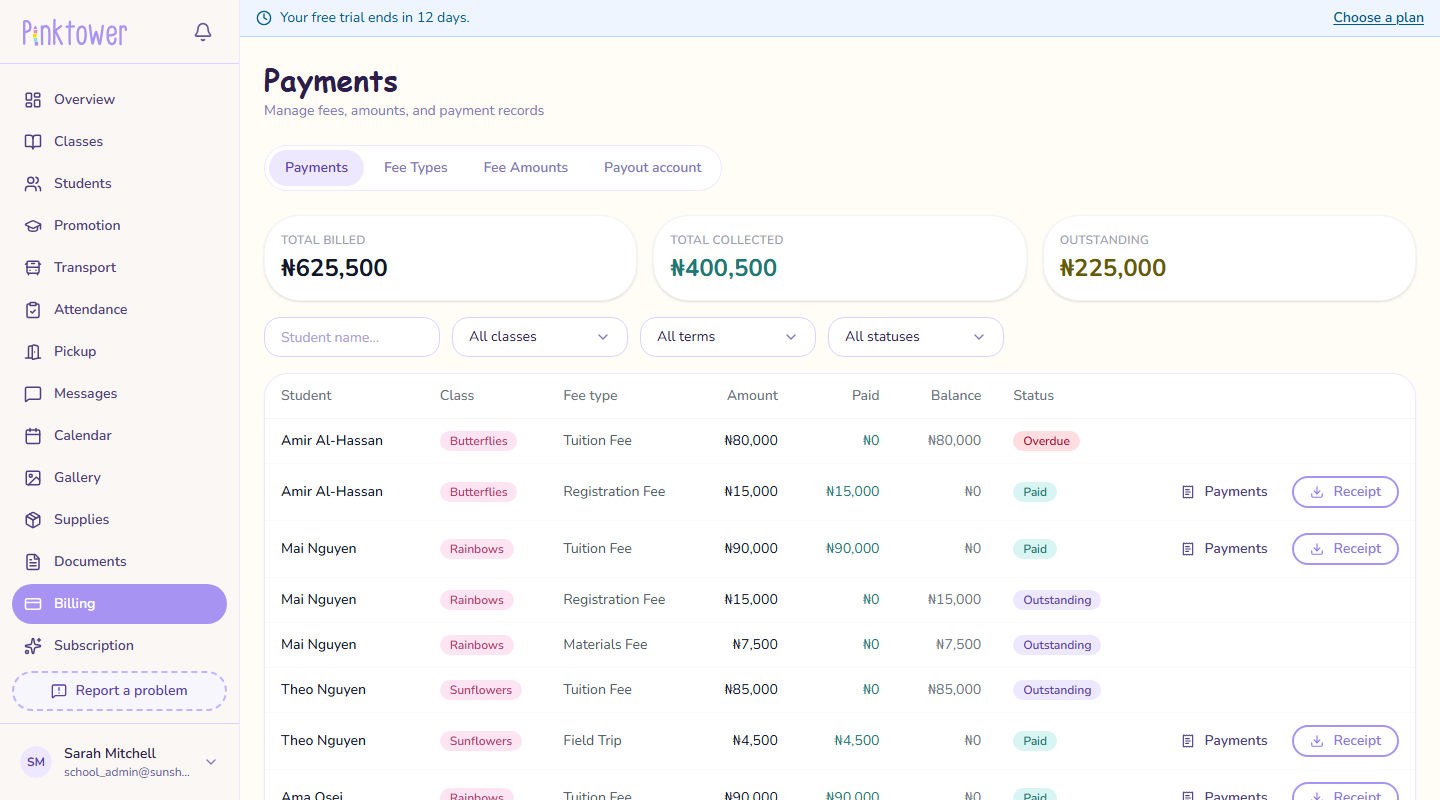
- Check the totals at the top: Total billed, Total collected and Outstanding.
- Narrow the list with the filters:
- search by Student name;
- choose a class (it starts on All classes);
- choose a term (All terms, a term name, or Year-round (preschool) for the monthly grades);
- choose a status: All statuses, Paid, Outstanding, Partial or Overdue.
Each row shows the student, class, fee type, Amount, what has been Paid, the Balance and the Status. The last row adds up the records shown.
Total collected is money actually received. A part-paid fee counts what has been paid towards Total collected and the rest towards Outstanding.
What the statuses mean
| Status | Meaning |
|---|---|
| Outstanding | Nothing has been paid yet. |
| Partial | Some has been paid, and a balance remains. |
| Paid | Paid in full. |
| Overdue | The due date has passed and a balance remains. |
See the payments on a fee
Press Payments on a row to see each payment made against that fee: the amount, the date, how it was paid (Card or Bank transfer) and any processing charge the parent paid. Any refunds are listed underneath. This is also where you start a refund; see Refunds.
The Payments button appears once money has been paid against a fee.
Receipts
Each payment gets its own receipt, numbered in your school's own sequence and headed with your school's name and contact details. A fee paid in three instalments has three receipts. Parents can download theirs straight after paying.
Press Receipt on a row to download a receipt. This always gives you the receipt for the most recent payment on that fee.
A receipt can take a few seconds to appear after a payment.
Overdue fees
A fee becomes overdue once its due date has passed and it is not fully paid. PinkTower checks every day and reminds the parent about each overdue fee. A part-paid fee still goes overdue if the rest is not paid.
To see who is behind, choose Overdue in the status filter.
Fees when a child leaves or moves
- Recording a child as graduated or left asks whether to keep what they owe or write it off. See When a child leaves.
- Year-end promotion asks the same question once for everyone graduating. See Year-end promotion.
- Removing a child from a class, or moving them to another class, cancels fees that are still wholly unpaid.
Fees with something already paid are never cancelled this way. They stay payable, and can still go overdue after the child has left.
Disputed payments
Occasionally a parent asks their bank to reverse a fee payment. When that happens, every administrator gets a notification naming the payment and the deadline for answering it. Act quickly: PinkTower needs your evidence, such as the receipt and the child's attendance, before the deadline, or the payment provider accepts the dispute and takes the money back. Contact PinkTower as soon as you see one. See Report a problem.
Not available yet
There is no way to record a payment a parent made outside the app, such as cash or a direct bank transfer to the school.