Run the morning and afternoon runs
Who can do this: Bus crew
On a working day, My bus is the screen you need. It lists every child who rides your bus, grouped by class, and lets you mark them on and off at each stop.
Before your first run
An administrator has to add your bus, assign you to it, and choose which children ride. Until then, My bus says No bus assigned to you yet. If you see that on a morning you are meant to be working, tell the office. See Set up the school bus.
You crew one bus. You see the children on your own bus and nobody else.
Open your roster
- Open My bus in the menu.
- Choose Morning run or Afternoon run. The screen opens on a sensible guess, but check it.
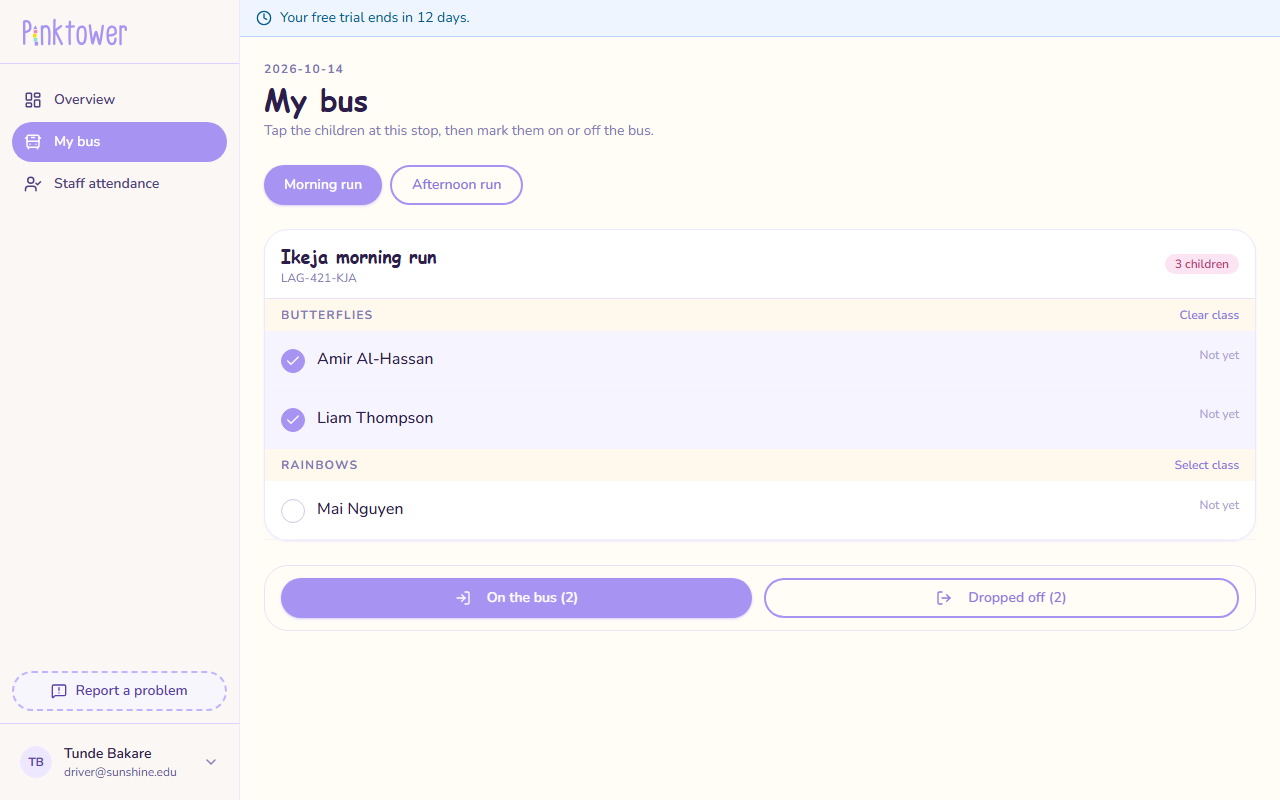
The top of the roster shows your bus's name and how many children ride it. Each child's row shows where they are on the run you are looking at: Not yet, On bus to school, At school, On bus home or Home.
Mark children at a stop
- Tap each child getting on or off. You can select several at once. To select a whole class, press Select class. Press Clear class to undo it.
- In the bar at the bottom of the screen, press On the bus or Dropped off. The number in brackets is how many you selected.
- Read the line at the top. It says how many were marked, how many were already marked, and anyone who could not be, with the reason.
Tapping a child who is already marked is not a mistake. PinkTower says they were already done and keeps the first time.
The two runs
The morning run and the afternoon run are separate. A child driven to school by a parent and brought home by the bus simply has no morning run, and that is fine.
The afternoon run opens at a set time. Before then, marking a child onto the afternoon run is refused with a message such as It is still the morning run. The afternoon run opens at 10:00 UTC. It almost always means the Morning run / Afternoon run choice was left on the wrong one. Switch it and try again. The office sets this time, in UTC (West Africa Time is one hour ahead). If it looks wrong, ask them.
The youngest children do not ride. Children in Preschool, or Infant and Toddler, are refused with a message such as Preschool children travel with an adult.
Getting off is never refused. A child on the bus can always be marked Dropped off.
Close the run
The last tap matters. Until a child is marked Dropped off, their parent's screen still shows them on the bus. Mark every child off when they leave the bus. See Driver and conductor together.
Working without signal
You can keep marking children with no signal.
- Mark the children as usual.
- The line at the top says Saved on this device — it will sync when you have signal.
- A banner shows how many records are waiting.
When your signal comes back, the waiting taps are sent in the order you made them. Keep PinkTower open so they can be sent.
Use a phone browser
The crew screen is part of the PinkTower website, which is where the offline saving works. You can add it to your phone's home screen so it opens like an app. See Install PinkTower on your phone.
What your taps do
You are not only keeping your own list. Each tap tells other people:
| When you mark | What happens |
|---|---|
| A child On the bus, morning | Their parents are told the child is on the bus to school |
| A child Dropped off, morning | They are marked Present on their class register, and their parents are told they arrived at school |
| A child On the bus, afternoon | Their parents are told the child is on the bus home, and their pickup is recorded |
| A child Dropped off, afternoon | Their parents are told the child arrived home |
Your dashboard
Overview shows how many children are on the bus, how many are still to collect or board, and how many are at school or home. It also shows whether today is a working day for you. Use I'm away or running late there if you cannot come in. See Report your own absence.