Accept an invitation
Who can do this: Administrator Teacher Nurse Bus crew Parent
Everyone except the person who registers a school joins PinkTower by invitation. Your school sends it by email: administrators invite staff, nurses, bus crew and other administrators, and parents are invited when the school (or another parent) adds them as a guardian of a child.
If you are opening PinkTower for your school for the first time, you do not need an invitation. See Register your school.
Create your account
- Open the link in your invitation email. The Accept your invitation page shows the email address you were invited on and the role you are joining as.
- Enter your First name and Last name.
- Choose a Password and type it again in Confirm password.
- Press Create account.
- When you see Account created successfully!, PinkTower takes you to the sign-in page. Sign in with your email address and your new password.
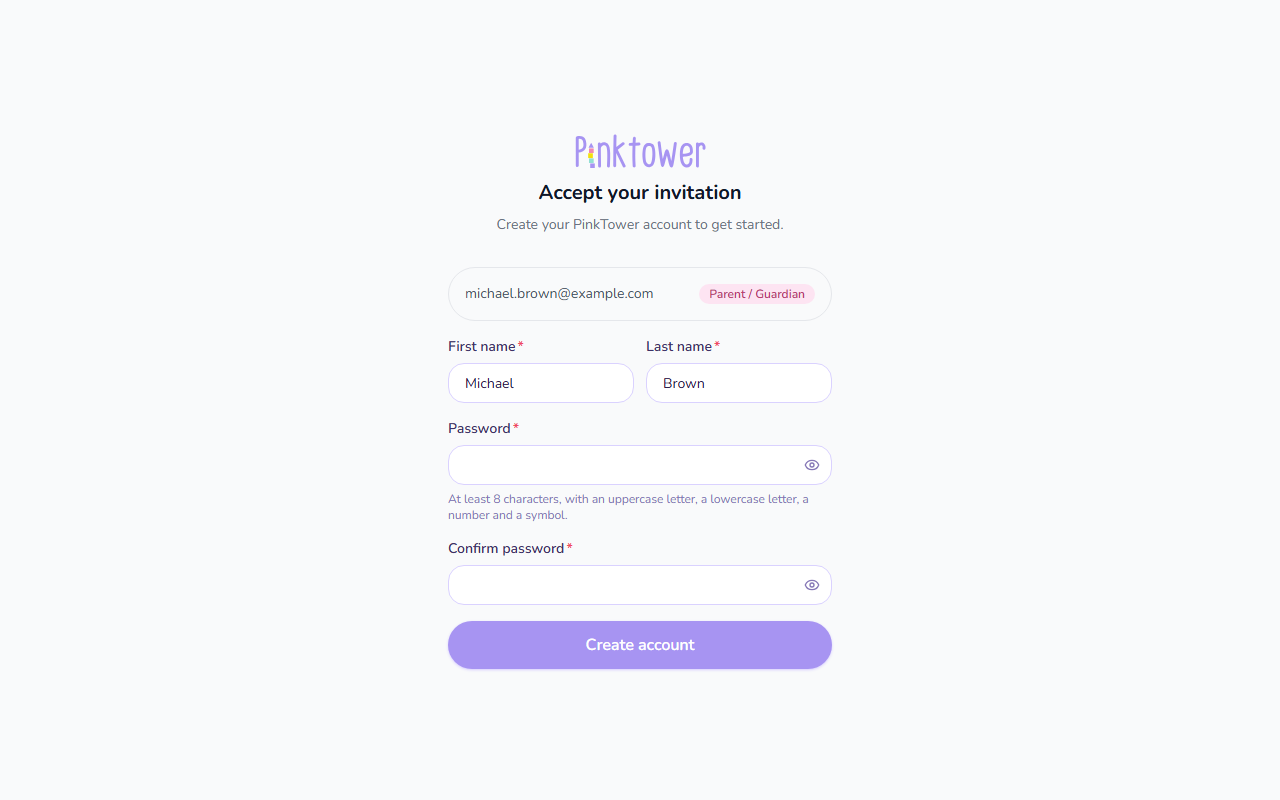
Your password must be at least 8 characters, with an uppercase letter, a lowercase letter, a number and a symbol. The same rules apply everywhere you set a password.
The first time you sign in, PinkTower asks for your phone number and address before anything else opens. See Add your contact details.
If you already have a PinkTower account
If your email address already has a PinkTower account (for example, you have a child at another PinkTower school), the invitation adds the new school to the account you already have. You keep using the same password, and you are not asked to choose a new one.
- Open the link in your invitation email.
- If you are not signed in as the invited email address, press Sign in to join this school and sign in with your usual password. PinkTower brings you straight back to the invitation.
- Check your First name and Last name, then press Join this school.
- When you see School added to your account!, PinkTower opens the new school for you.
Note
If you were signed in as a different account, pressing Sign in to join this school signs you out of it first. Only the invited email address can accept the invitation.
Once you belong to more than one school, you choose between them when you sign in. See Belong to more than one school.
If the link does not work
- "This invitation has already been accepted or has expired." Invitations last 72 hours and can be used once. Ask the person who invited you to send it again.
- "This invitation link is invalid or has expired." The link may have been cut short when it was copied. Open it straight from the email, or ask for a new invitation.
Can't find the email? Check your spam or junk folder, and make sure the school has your correct email address.