Belong to more than one school
Who can do this: Administrator Teacher Nurse Bus crew Parent
One PinkTower login can belong to several schools. A parent with children at two PinkTower schools, or a teacher whose own child goes to another PinkTower school, signs in once with the same email and password.
You join a second school by accepting its invitation while signed in to your existing account. See Accept an invitation.
Your role can be different at each school: you might be a Teacher at one and a Parent at another. Each school sees only what happens at that school.
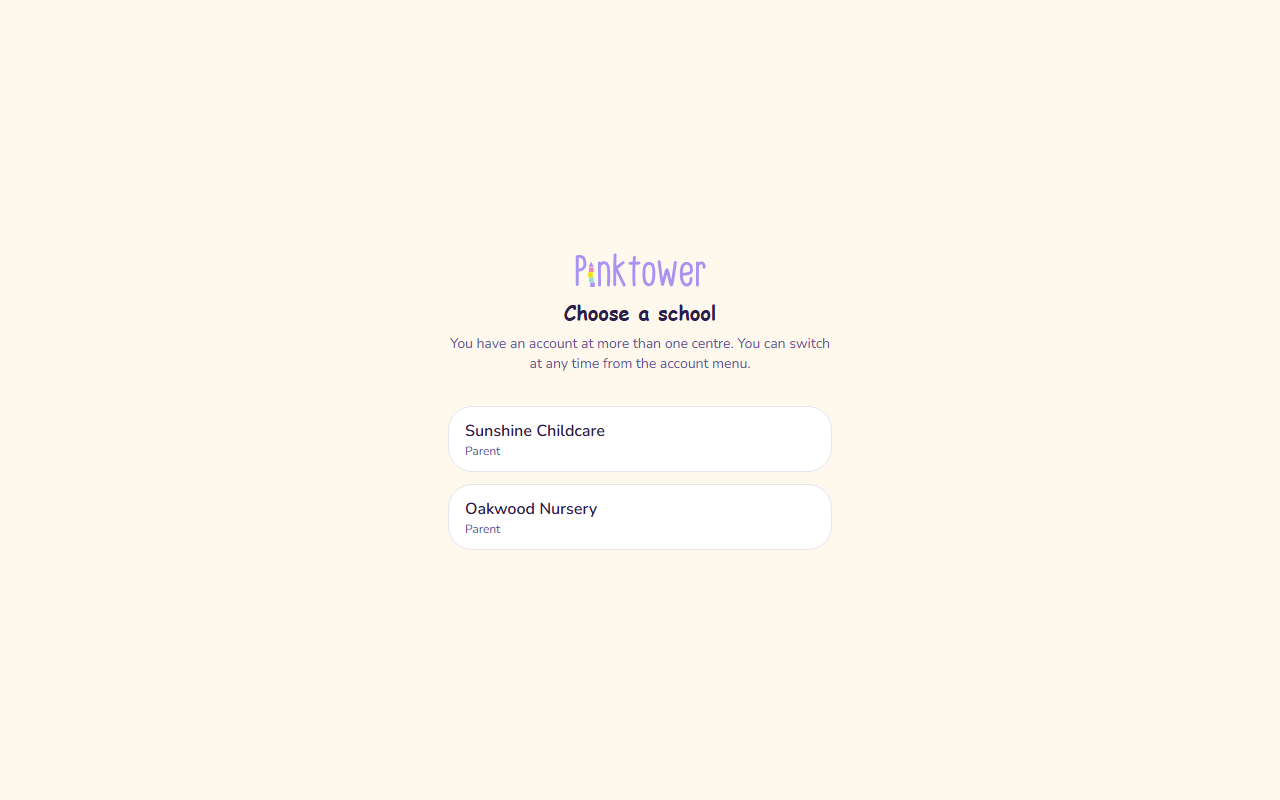
Choose a school when you sign in
If you belong to more than one school, you see Choose a school after signing in.
- Sign in as usual.
- On Choose a school, press the school you want. Each one shows your role there.
- That school's dashboard opens.
Switch to another school
- Open the account menu (your name at the bottom of the sidebar, or your picture at the top right on a phone).
- Under Switch school, press the school you want.
- That school's dashboard opens.
Switch school only appears in the account menu if you belong to more than one school.
When a link belongs to your other school
If you open a link to a school you belong to but are not using right now (a bookmark, or a link someone sent you), PinkTower asks Switch to that school, with the message "You are currently signed in to a different school." Press Open followed by the school's name to switch.
Good to know
- Contact details are kept per school. The first time you open a new school, it asks for your phone number and address. See Add your contact details.
- Your password and two-factor authentication cover every school, because they belong to your login, not to a school.
- Notification settings are per school, so you can, for example, mute photos at one school and keep them at another.
- If one school's access is suspended, your other schools still work. See If your school's access is suspended.
- Leaving one school does not affect the others. See Leave a school.