Terms, fee types and amounts
Who can do this: Administrator
Setting up fees takes three steps, in this order:
- Terms: the dates of each term, for every grade that has terms.
- Fee types: the kinds of charge you make, such as tuition or meals.
- Fee amounts: what each grade pays for each fee type, and on which day it is due.
Before you start, check your grade levels and display currency. Fee amounts are saved in your display currency.
Everything here is under Billing in the sidebar. To understand how the charges are then made, read How billing works first.
Terms
Terms decide when the termed grades are billed. They matter beyond fees too: the school bus only runs during a term.
- Open Billing → Fee Amounts.
- Press Manage terms.
- Enter a Term name, for example "Autumn 2026".
- Under Applies to, tick the grades this term covers. All your termed grades are ticked to begin with.
- Choose the Start date and End date.
- Press Add term.
In the same window you can Deactivate or Activate a term, or delete it with the bin icon.
Preschool and Infant and Toddler have no terms
These two grades run all year and are billed every month, so they never appear under Applies to.
Add next term before you change a price
A price change starts at the next term. If the only term you have is the one running now, there is nothing for the change to start in, and it is refused. Add the next term first.
Fee types
A fee type is a kind of charge.
- Open Billing → Fee Types.
- Press New fee type.
- Enter the Fee type name, for example "Tuition Fee".
- Choose a Category: Tuition, Registration, Activity, Transport, Materials, Meals or Other.
- Optionally, add a description.
- Press Create fee type.
The category matters: only Tuition is reduced for a child who joins part-way through a month or term. Every other category is charged in full.
To change a fee type, press Edit. Fees already set up and charged keep pointing at it.
Stop using a fee type
- Deactivate a fee type you no longer use. It stops appearing when you set fee amounts, and makes no new charges. Past charges are kept. Press Activate to bring it back.
- Delete (the bin icon) removes a fee type for good, together with its fee amounts. You can only delete a fee type nobody has ever been charged under, including fees already paid. Otherwise, deactivate it.
Fee amounts
A fee amount sets what one grade pays for one fee type. It is a standing charge: once set, it is charged every billing cycle, every month or every term, until you change it.
- Open Billing → Fee Amounts.
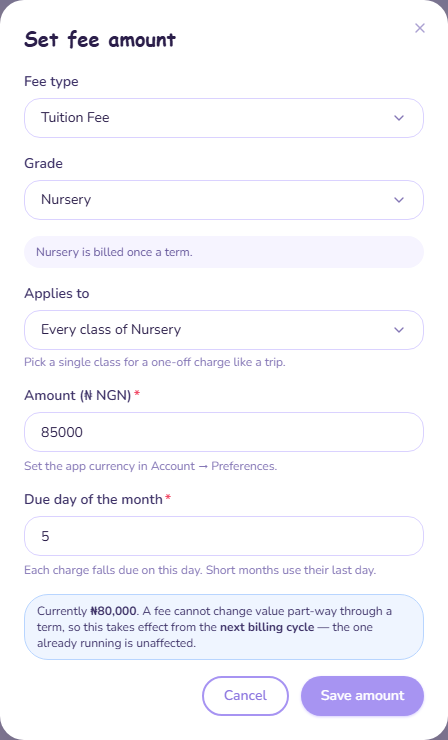
- Press Set fee amount.
- Choose the Fee type and the Grade. The window says whether that grade is billed once a term or every month.
- Under Applies to, leave Every class of the grade selected, or pick a single class for a charge only that class pays, such as a trip.
- Enter the Amount, in whole currency units. For example, enter
250000for ₦250,000. You can add kobo or cents, such as250000.50. - Enter the Due day of the month, from 1 to 31. Each charge falls due on this day. In a short month, a day that does not exist becomes the last day of the month.
- Press Save amount.
- If children are already enrolled in that grade, PinkTower tells you how many will be billed. Press the button again, which now reads Bill and the number of students, to confirm.
Children already enrolled are billed for the current cycle as soon as you save. Nobody is billed twice.
Each primary year group is its own grade, so Primary 1 to Primary 6 are priced separately.
The Fee Amounts tab lists each charge with its grade, amount, whether it is Each term or Monthly, and its due day. Filter it with All grades.
Change a price
- Press Edit on the fee amount, or Set fee amount.
- Choose the same fee type, grade and class.
- Enter the new Amount and Due day of the month.
- Press Save amount, and confirm with Bill if asked.
The window tells you the price now and that the change takes effect from the next billing cycle. The month or term already running is not affected. Until the change starts, the tab shows both prices: what parents pay now, and the new price with the date it starts.
Currencies
Amounts can be in Nigerian Naira, US Dollar, British Pound or Euro, and are saved in your school's display currency. If your display currency is anything else, saving is refused. Parents can only pay naira fees online.
What next
- Connect your bank account, if you have not already, so parents can pay.
- Enrol children into their classes, which charges them. See Create classes.