Year-end promotion
Who can do this: Administrator
Promotion moves every enrolled child up a grade at once, and graduates the children in your highest grade. It works in two stages: PinkTower suggests every move, you check and adjust them, and nothing changes until you apply.
Check the suggested moves
- Open Promotion in the sidebar. The Year-end promotion page opens with a suggestion for every enrolled child. Nothing has changed yet.
- Check How children move through this school at the top. It shows your school's grades in the order children pass through them, ending in Graduate. Children move up in this order.
- Read down the table. Each child has one of these under What happens:
| What happens | Meaning |
|---|---|
| Moves up | The child moves into the next grade. Next year shows their new class. |
| Graduates | The child is in your highest grade, so they leave the school. |
| Blocked | PinkTower cannot suggest a move. The reason is shown, and the child stays where they are. |
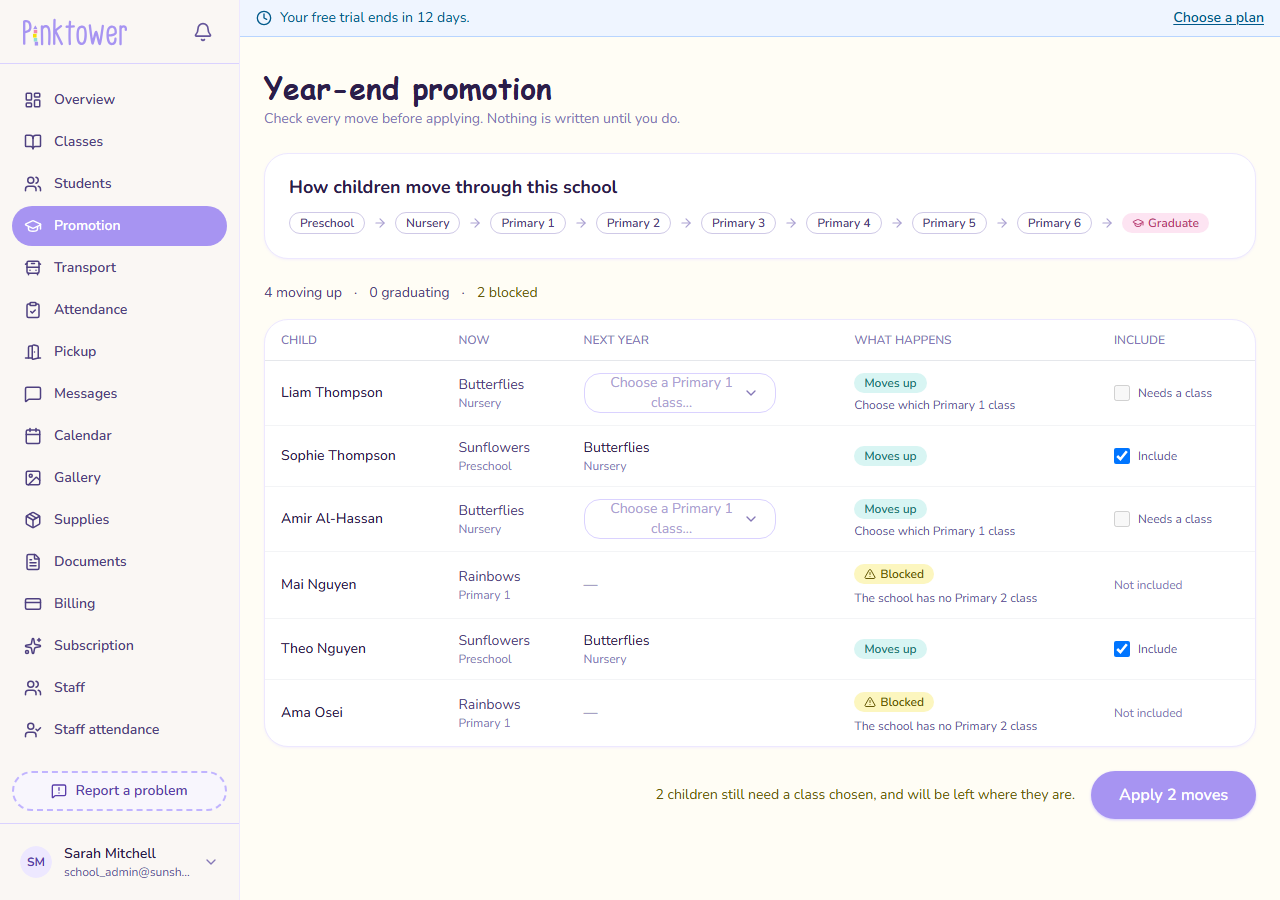
A child is Blocked when the next grade has no class yet, or when they are in a grade your school no longer runs. Create the missing class (see Create classes) or move the child yourself, then open Promotion again.
Adjust the moves
- Choose a class where there is more than one. If the next grade has two or more classes, PinkTower does not guess. Pick one from the Choose a … class… list on the child's row. Until you do, the row says Needs a class and is left out.
- Leave out any child who should stay put, for example a child repeating the year. Untick Include on their row.
- Decide what happens to fees owed by graduating children. If anyone is graduating, a box
asks What about fees the leavers still owe? Choose one:
- Write off what graduating families owe. This is selected to begin with.
- Keep it owing — the debt stands. The families still owe it.
Children who are moving up always keep what they owe. Changing class is not leaving.
Writing off cannot be undone
Written-off fees are cancelled for good. If graduating families should still pay, choose Keep it owing — the debt stands before you apply.
Apply the promotion
Press Apply N moves, where N is the number of children included. If some children still need a class chosen, a message next to the button says how many will be left where they are.
This happens straight away
There is no second confirmation and no undo button. As soon as you press Apply, children change class and graduating children leave the school. To reverse a move afterwards, you enrol the child back into their old class by hand, and bring back a graduated child from their student page (see When a child leaves). Check every row first.
When it has finished, Promotion applied shows how many children moved up and how many graduated.
- If some children could not be moved, the summary lists them with the reason. Fix the cause and apply again. Children who already moved are skipped, not moved twice.
- Graduated children are recorded as Graduated, just as if you had recorded them leaving. Their record stays, and you can find them on Students by choosing Graduated in the filter.
- Parents whose children have all graduated can still sign in and read their records, but can no longer change anything. See Alumni access.
If the page says Nobody to promote, no children are enrolled in a class.