Required documents
Who can do this: Administrator
Tell PinkTower which documents your school needs for each child. Parents then see exactly what to upload, and you can see at a glance who is missing what.
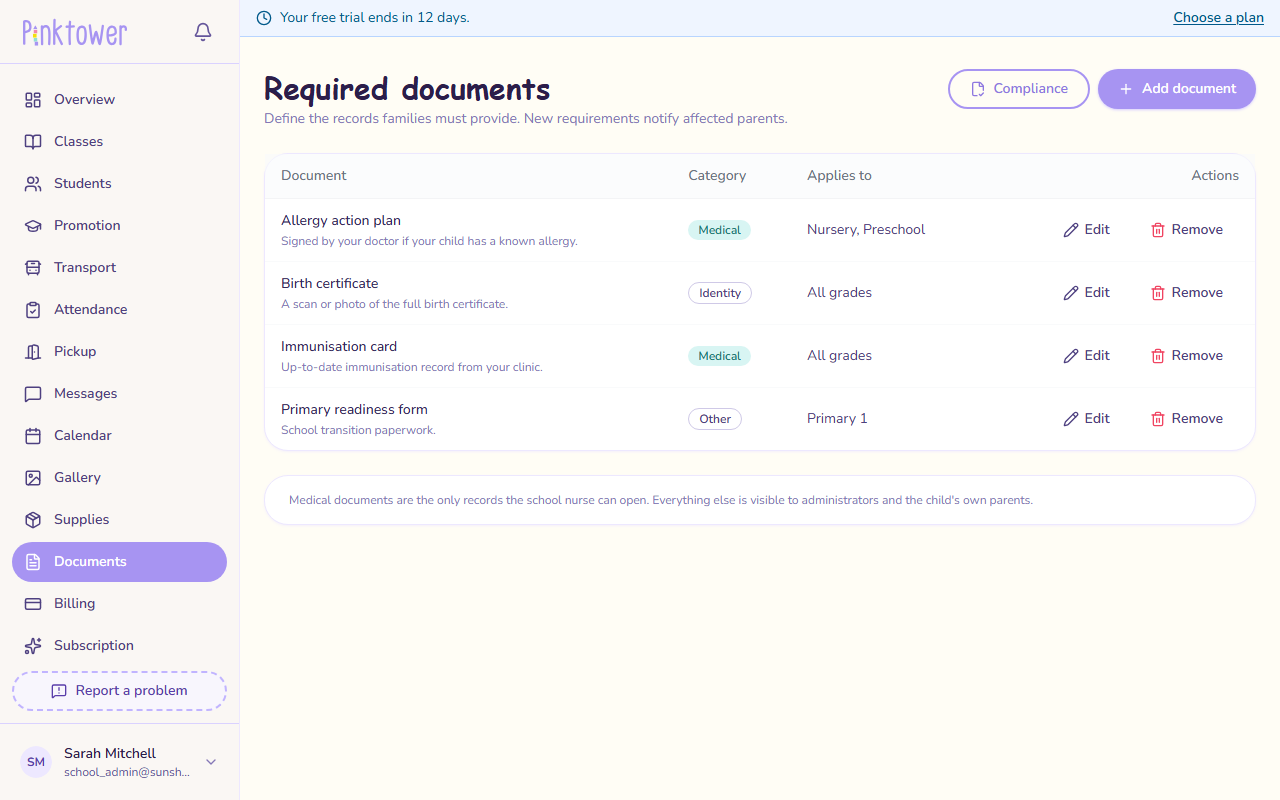
Add a required document
- Open Documents in the sidebar. The Required documents page opens.
- Press Add document.
- Enter a Name, such as Birth certificate.
- Add a Description telling parents what to upload, if it helps.
- Choose a Category:
- Identity: birth certificates, ID.
- Medical: immunisation cards, allergy plans. The school nurse can open these.
- Other: consent forms, agreements.
- Under Applies to, choose:
- All classes: every child in the school, including any grade you add later.
- Selected grades: then tick the grades it applies to.
- Press Add document.
The parents of the children it applies to are notified straight away, and by email, with a link to their Paperwork page.
The category decides who can open a document
Medical documents are the only ones the school nurse can open. Identity and Other documents are seen only by administrators and the child's own parents. Changing a document's category changes who can open the copies already uploaded.
Change a required document
- On Required documents, press Edit next to the document.
- Change the name, description, category or grades.
- Press Save changes.
Stop requiring a document
- Press Remove next to the document.
- Press Remove to confirm.
The document stops being required. Copies families have already uploaded are kept.
Next steps
- Check who is missing documents: approve uploads and send reminders.
- Upload paperwork: what parents see.