Photo gallery
Who can do this: Administrator Teacher Parent
The Gallery holds photos from the school day. Teachers and administrators upload them, and parents see the photos that concern their children. Photos are published as soon as they are uploaded, and the parents who can see them are notified.
Nurses and bus crew do not have a gallery.
Upload photos
Who can do this: Administrator Teacher
- Open Gallery in the sidebar.
- Press Upload image(s).
-
In Who can see these photos?, choose the audience:
Whole school (every parent can see them), or a class (the parents of that class).
One of the classes you teach. Only administrators can share with the whole school.
-
Press Select image(s)… and choose your photos. You can add up to 20 at a time, each up to 10 MB, as JPEG, PNG, WebP or GIF. Press Add more images to add more.
- To narrow a photo to particular children, press Tag children next to it and choose the children in it (see Tagging children).
- If the photos are from a school event, choose it in Event (optional).
- Add a Caption (optional) describing the activity.
- Press Publish photo, or Publish N photos for several.
To take a photo out before publishing, press the cross next to it.
Tip
Choosing an event first fills in the audience for you: the event's class, or Whole school for a school-wide event. You can still change it.
Tagging children
Tagging is available when the audience is a class. Under each photo, PinkTower tells you who will see it:
- An untagged photo is seen by all the class's parents.
- A tagged photo is seen only by the tagged children's parents.
Tagging is chosen photo by photo, so a batch can mix class photos with tagged ones. You can only tag children in the class you chose. Photos shared with the whole school cannot be tagged.
Note
The event is a label only. It helps families find the photos, but it does not change who can see them.
Who sees which photos
| You are | You see |
|---|---|
| Parent | Whole-school photos, photos for your children's classes, and photos your children are tagged in |
| Teacher | Whole-school photos, photos for the classes you teach, and photos you uploaded |
| Administrator | Every photo at the school |
Find photos
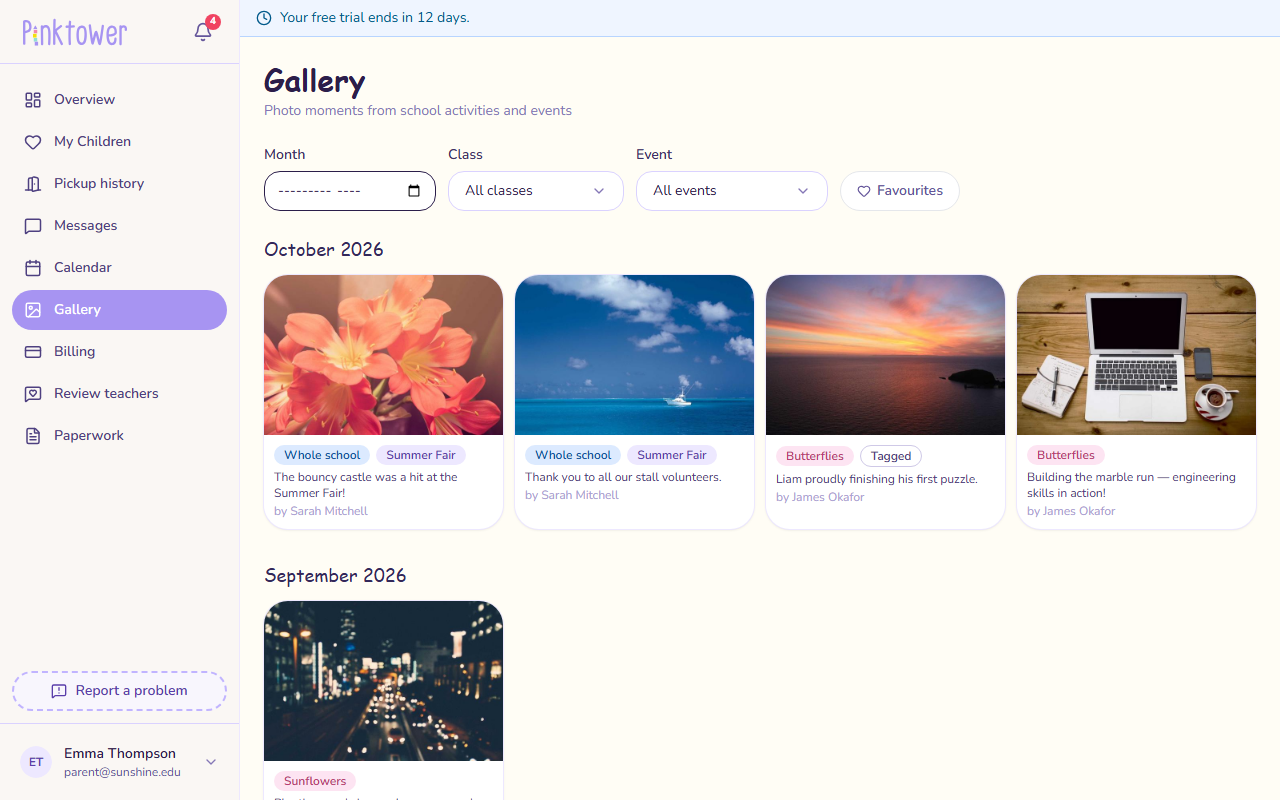
Photos are grouped by month, newest first. To narrow them down, use the filters at the top:
- Month: one month only.
- Class: one class, or All classes.
- Event: one school event, or All events.
Each photo shows its class or Whole school, its event, a Tagged label if children are tagged in it, the caption and who uploaded it. Press a photo to see it full size.
Favourites
Who can do this: Parent
- Press the heart on a photo, or press Favourite when it is open full size.
- To see only your favourites, press Favourites above the photos. Press it again to see everything.
Your favourites are yours alone. To remove one, press the heart again.
Download a photo
- Press the photo to open it full size.
- Press Download.
Keep school photos private
Photos often include other children from the class. Please do not share downloaded photos on social media.
Delete a photo
Who can do this: Administrator Teacher
Teachers can delete photos they uploaded. Administrators can delete any photo.
- Point at the photo and press the bin icon in its top corner.
- Press Delete to confirm.
Warning
A deleted photo is removed from the gallery for everyone and cannot be brought back.