When a child leaves
Who can do this: Administrator
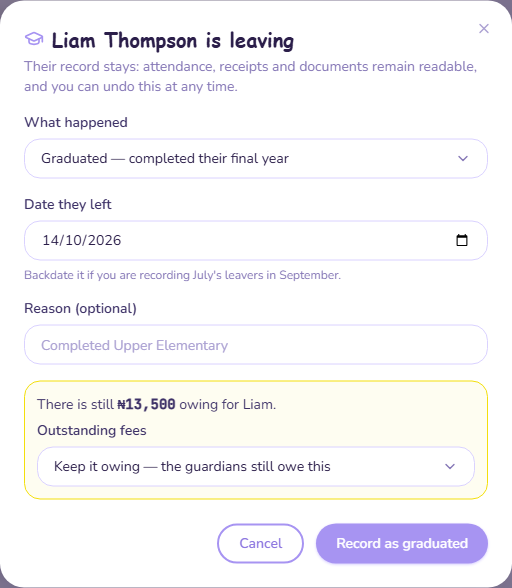
When a child finishes their final year, moves away, withdraws or transfers, record it on their student page. Their record is kept: attendance, receipts and documents stay readable, and you can undo it at any time.
To graduate a whole year group at once, use Year-end promotion instead.
Record a child as leaving
- Open Students and open the child.
- Press Record as leaving.
- Under What happened, choose either:
- Graduated — completed their final year, or
- Left — moved away, withdrew or transferred.
- Check the Date they left. It starts as today. You can choose an earlier date, but not a future one.
- Add a Reason (optional) if you want one.
- Check how much is still owed. The dialog shows the amount, or says nothing is outstanding.
- Under Outstanding fees, choose either:
- Keep it owing — the guardians still owe this. This is selected to begin with.
- Write it off — cancel what is outstanding.
- Press Record as graduated or Record as left.
Writing off cannot be undone
Bringing a child back does not bring back fees you wrote off. If you are unsure, choose Keep it owing — the guardians still owe this.
Fees that are already part-paid are not cancelled either way. Graduated and Left work the same way; the difference is only what your records say.
What happens next
- The child comes off their class, the attendance register, the pickup list and the message directory.
- They no longer count towards your PinkTower subscription.
- Their page shows Graduated or Left, and the date.
- If none of a parent's children is still enrolled, that parent's access becomes read-only. See Alumni access.
To find the child again, open Students and choose Graduated, Left the school or Everyone, past and present in the filter.
Leaving, not deleting
The Delete button on a student's page is only for a child added by mistake. It removes the record and its documents for good. For a child who has left, always use Record as leaving.
Bring a child back
If you recorded a child by mistake, or they come back to the school:
- Open Students, choose Graduated, Left the school or Everyone, past and present in the filter, and open the child.
- Press Bring back.
- Press Set back to enrolled.
The child is enrolled again, but not put back into a class. Enrol them from the class page: that is also what starts billing them again. See Create classes.
Their parents get their normal access back.