Register your school
Who can do this: Administrator
Registering creates your school on PinkTower and your own administrator account, together, in four short steps. It is the only way a new school is created. Everyone else at your school joins later by invitation.
Your free trial starts as soon as you register. Everything works during the trial.
Registration may be by invitation
PinkTower may be open to invited schools only. If so, you will receive a welcome email with a school invite code and a link to the registration form. Opening that link fills the code in for you. If you have no code and would like one, email hello@pinktowerafrica.com.
Before you start
You will need:
- the name your school uses day to day;
- the school's registered legal name and registered address, if they are different;
- an email address you can open now, for the confirmation code;
- the authority to sign an agreement on the school's behalf, for example as its owner, director, proprietor or head.
Register
- Open the link in your welcome email. If sign-up is open, you can also press Register here on the sign-in page.
- Organisation: enter your Centre name and press Continue. This is the name everyone sees, and it also becomes part of your school's web address.
- Admin account: check the School invite code if you were sent one, then enter your First name, Last name, Admin email, a Password and Confirm password. Press Continue to agreement.
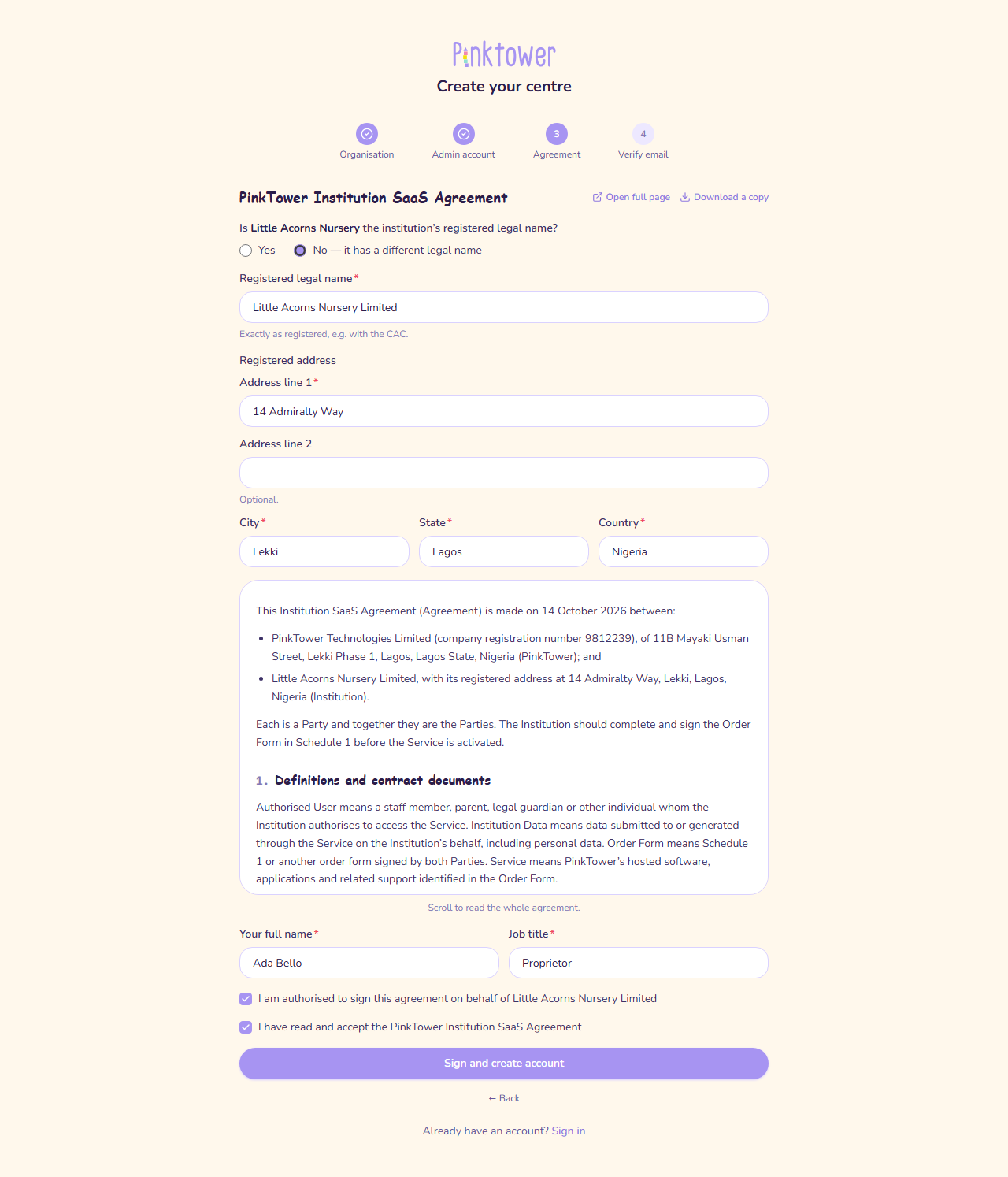
- Agreement: answer whether your centre name is the institution's registered legal name. If it is not, choose No — it has a different legal name and enter the Registered legal name.
- Enter the Registered address: Address line 1, City, State and Country. Address line 2 is optional. This address also becomes your school's contact address, which you can change later.
- Read the agreement between PinkTower and your school. You can press Download a copy to keep one.
- Enter Your full name and Job title.
- Tick I am authorised to sign this agreement on behalf of your institution, and I have read and accept the agreement.
- Press Sign and create account.
- Verify email: we email a 6-digit code to the address you gave. Enter it under Verification code and press Verify email. If it does not arrive, press Resend code.
You are taken to the sign-in page. Sign in with your email and password. The first time, PinkTower asks for your phone number and address before anything else opens; see Add your contact details.
Only sign if you may bind the school
Your electronic signature binds the institution as if you had signed by hand. If you are not the right person, ask the person who is to register instead. You can read the agreement before signing up from the School agreement link at the foot of the PinkTower website.
Your signed agreement
A copy of the agreement you signed is kept with your school's account and cannot be changed. Any administrator can download it at any time from My Account → School agreement. See School settings.
If something goes wrong
- You must confirm your email before you can sign in. If you closed the page before entering the code, register again to get a new one.
- No code after a few minutes? You may already have a PinkTower account on that email address, for example as a parent at another school. In that case no code is sent. Register with a different email address, or contact PinkTower at hello@pinktowerafrica.com.
- The invite code is refused. Each code works once. Check you typed it exactly as it appears in your welcome email, or open the link in the email instead.
- The agreement changed while you were signing. The page asks you to reload it to get the latest version, then sign again.
Next steps
Work through the recommended setup order. Start by choosing your grade levels in School settings.