Your account and security
Who can do this: Administrator Teacher Nurse Bus crew Parent
Everyone can look after their own account from My Account: open the account menu (your name at the bottom of the sidebar, or your picture at the top right on a phone) and choose My Account.
Change your profile picture
- On My Account, press the camera button on your picture.
- Choose a photo. It must be a JPEG, PNG or WebP image of 5 MB or less.
- Wait for Uploading photo… to finish. Your new picture appears wherever your name is shown.
Change your name, phone number or address
- On My Account, change what you need under Personal information (First name, Last name, Phone number) and Address.
- Press Save changes. You see Changes saved! when it has worked.
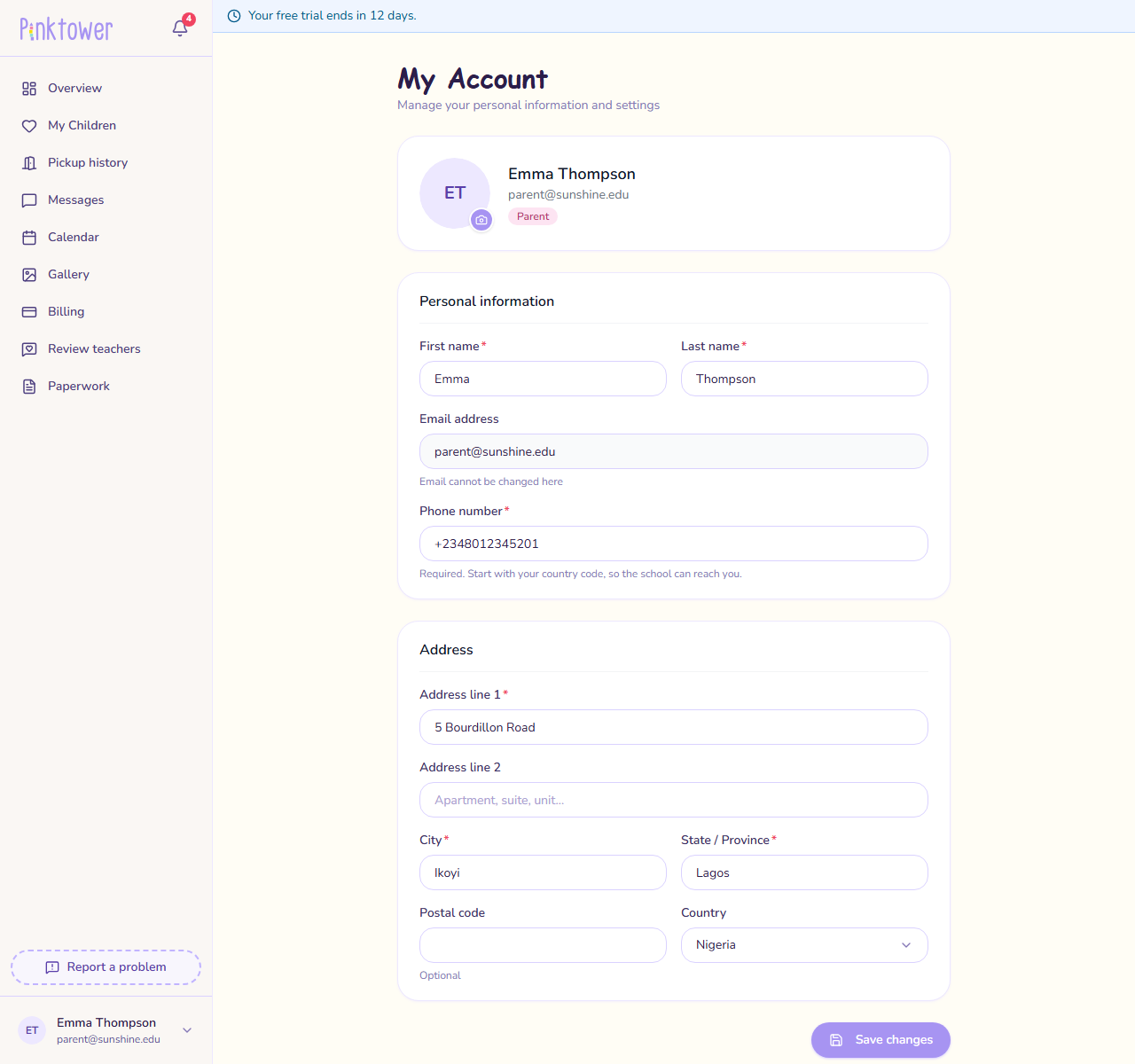
- Your email address is shown but cannot be changed here. It is the address you sign in with.
- Phone number and address are required. You can change them but not remove them. The phone
number must be in international format, such as
+2348012345678. See Add your contact details. - Address line 2 and Postal code are optional.
- If you belong to more than one school, your phone number and address are kept separately for each school.
Choose which notifications you get
Under Notifications on My Account, each kind of notification has its own switch. See Notifications for what each one covers.
Turn on two-factor authentication
Two-factor authentication adds a second check when you sign in: after your password, PinkTower asks for a 6-digit code from an authenticator app on your phone, such as Google Authenticator, Microsoft Authenticator or 1Password. Someone who learns your password still cannot sign in without your phone.
- Install an authenticator app on your phone, if you do not have one.
- On My Account, find Sign-in & security and press Turn on.
- Scan the QR code with your authenticator app. If you cannot scan it, type the key shown under Can't scan it? Enter this key in your app instead: into the app.
- Type the 6-digit code your app shows into Code from your app and press Verify and turn on.
- When you see Two-factor authentication is on, press Done.
From your next sign-in, PinkTower asks for a code after your password. See Sign in.
Two-factor authentication belongs to you, not to the school: if you use PinkTower with more than one school, it protects all of them.
Tip
If Sign-in & security says "Sign out and sign in again to manage two-factor authentication.", do that, then come back to My Account.
Turn off two-factor authentication
- On My Account, under Sign-in & security, press Turn off.
- Enter your Password and a current Code from your app.
- Press Turn off.
Signing in then needs only your password.
If you have lost your phone and cannot get a code, ask your school administrator to reset two-factor authentication for you. You are emailed when they do.
What else is on My Account
Depending on your role, you also see:
Display currency, Grade levels, your school's contact details and the school agreement. See School settings.
Assigned classes, which your administrator manages. You also see the school's display currency and grade levels, without being able to change them.
The school's display currency and grade levels, without being able to change them.
The school's display currency and grade levels, without being able to change them.
- My children lists each child's First name, Last name and Grade level, with a Save button for each child.
- Danger zone has Leave school, which removes your account from this school. See Leave a school.