Report a problem
Who can do this: Administrator Teacher Nurse Bus crew Parent
If something in PinkTower looks broken or wrong, you can tell the PinkTower team from inside the app. Every report is read.
Problem reports go to PinkTower, not to your school. For anything your school decides, such as a fee amount, a class change or your child's records, contact the school.
Send a report
- Open Report a problem:
- On a computer: press Report a problem at the bottom of the sidebar, just above your name.
- On a phone: open the account menu (your picture or initials, top right) and choose Report a problem. It is also at the bottom of the full menu.
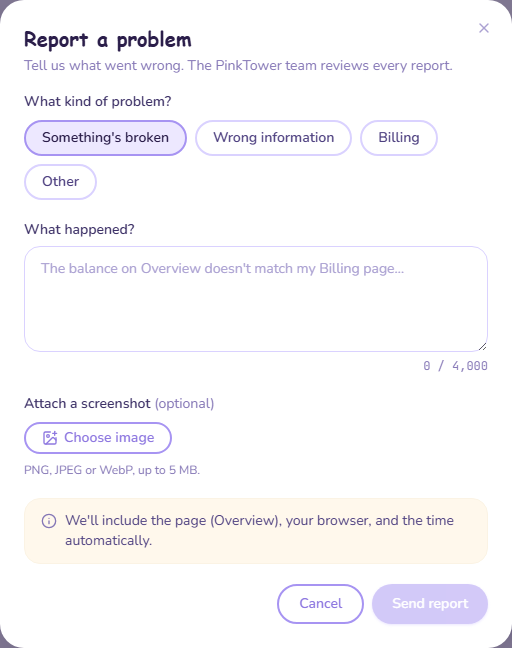
- Under What kind of problem?, choose Something's broken, Wrong information, Billing or Other.
- Under What happened?, describe the problem in at least 10 characters. What you expected and what you saw instead helps most.
- If it helps, under Attach a screenshot, press Choose image and pick an image (PNG, JPEG or WebP, up to 5 MB).
- Press Send report.
- You see Thanks — we've got it and a Reference. Note it down, and quote it if you contact PinkTower about the same problem.
What is sent with your report
- The page you were on, your browser, your screen size, the PinkTower version and the time are added automatically, so you do not need to describe them.
- Your name, email address and role are included so the team can reply to you.
- Nothing else about you is sent.
Good to know
- You need to be online. If you are not, you see "You're offline — try again when you're connected."
- You can send up to 20 reports a day. After that you are asked to try again tomorrow.
- Reporting still works if your school's PinkTower account is overdue, so you can always reach the team.