Check who is missing documents
Who can do this: Administrator
Once you have set up your required documents, PinkTower tracks who has provided them. You check each upload, and remind families about what is still missing.
Approve or reject an upload
Only an approved document counts as done.
- Open Students in the sidebar and choose the child. (From the compliance list, you can press the child's name instead.)
- On the Documents card, find a document marked Awaiting review.
- Press Download to check the file.
- Press Approve, or press Reject.
- If you reject it, type the reason and confirm. The parent sees this reason, so tell them what to fix.
A rejected document shows Rejected with the reason, and the parents are notified and emailed so they can upload a better copy. A reviewed document shows the date it was reviewed.
Note
You can only approve or reject a document while it is Awaiting review. If a family uploads a new copy, it goes back to Awaiting review and you can check it again.
See who is missing documents
- Open Documents in the sidebar.
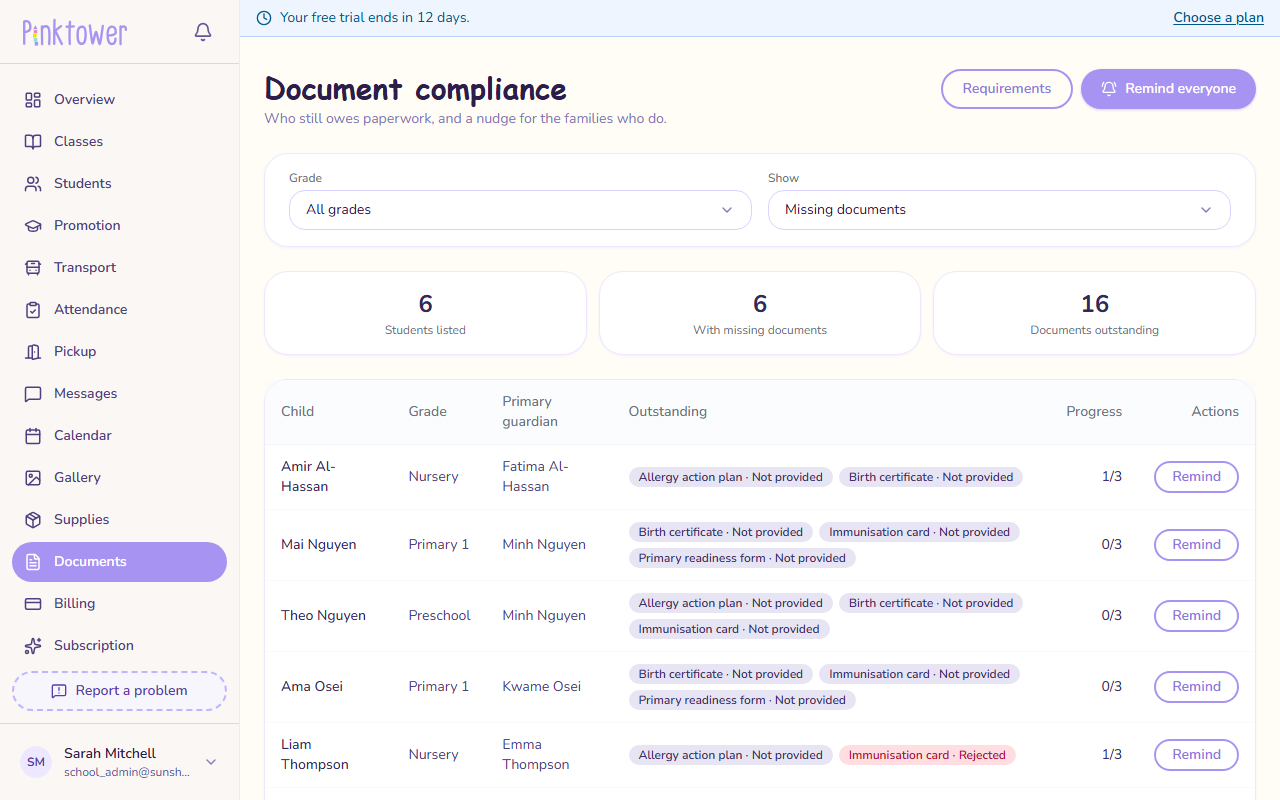
- Press Compliance. The Document compliance page opens.
- Use the filters:
- Grade: one grade, or All grades.
- Show: Missing documents (only children with something outstanding) or Every student.
At the top, three figures count the Students listed, those With missing documents, and the Documents outstanding.
Each row shows:
- the Child, with a link to their page
- their Grade
- the Primary guardian, or No guardian yet if nobody is linked to the child
- what is Outstanding, with each document's status
- Progress: approved documents out of those required, such as 1/3
Press Requirements to go back to the list of required documents.
Send reminders
- To remind one family, press Remind on the child's row.
- To remind every family with something outstanding, press Remind everyone.
The child's parents get a notification and an email listing what is still missing. PinkTower confirms the reminder was sent, or says Nothing to chase if every family is up to date. You can send reminders as often as you need to.
Remind everyone covers the whole school
Remind everyone reminds every family with outstanding documents, in every grade, even when the list is filtered to one grade. To remind one grade only, press Remind on each row.
Tip
A child with No guardian yet has nobody to remind. Link a guardian first. See Add students and guardians.