Take attendance
Who can do this: Administrator Teacher
The register is the first job of the day, and much of the rest of the day depends on it: only children marked Present or Late can be collected at pickup time, and parents are told when their child is marked Absent.
Teachers can mark the classes they are assigned to. Administrators can mark any class.
Mark the register
- Open Attendance in the menu.
- Choose the Class. If you teach only one class, it is already chosen.
- Check the Date. It opens on today. You can pick an earlier day to fill in a missed register, but not a future one.
- For each child, tap Present, Late, Absent or Excused.
- For Absent, you can pick a reason from the list: Sick, Family emergency, Medical appointment, Holiday or Other. The reason is optional.
- For Late, you can enter the time the child arrived.
- Press Save attendance.
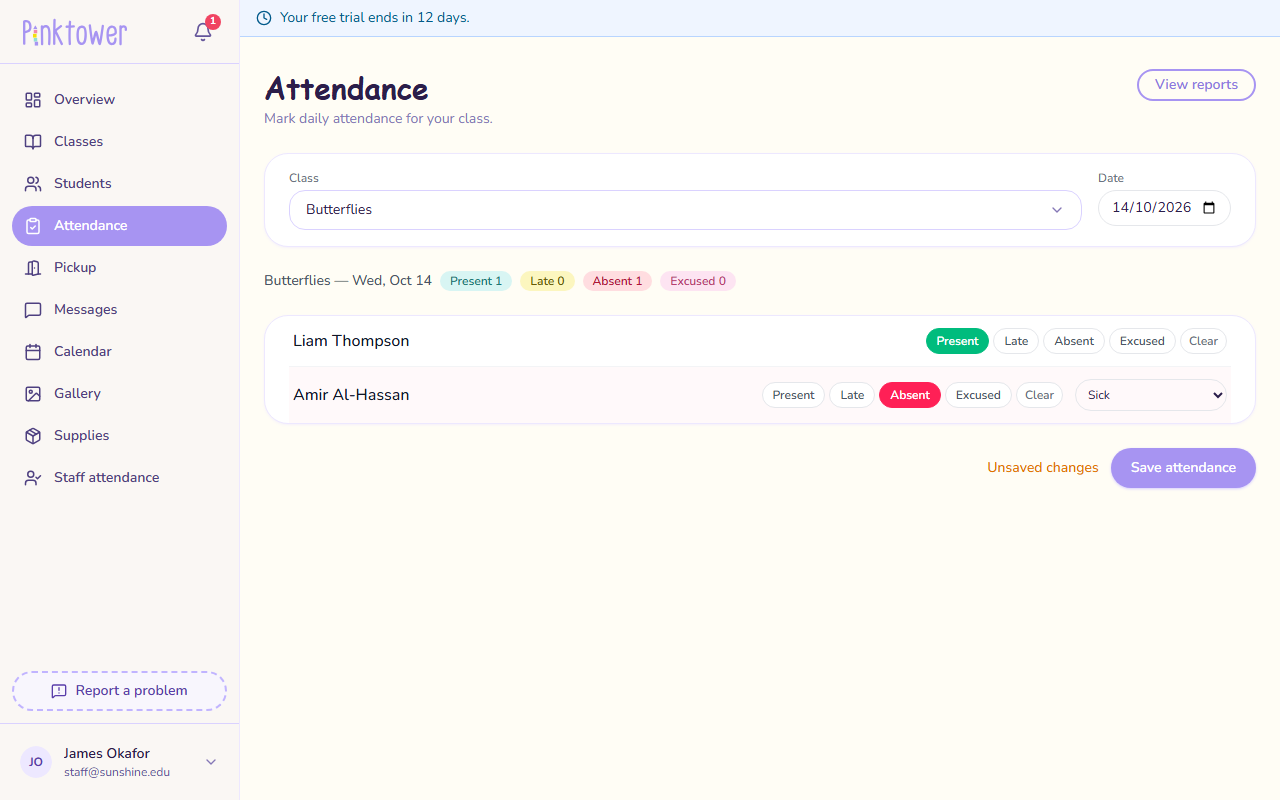
The counts above the list (Present, Late, Absent, Excused, Unmarked) update as you go. A child you do not touch stays Unmarked. Unsaved changes appears beside the button until you save.
You can save as often as you like. Each save replaces the register for that class and day.
A colleague's marks are kept
The register refreshes itself every minute or so while it is open. If a colleague marks a child in the same class, or a child arrives on the school bus, their mark appears on your screen. Children you have changed keep your mark.
Correct a mistake
To change a child's status, tap the right one and press Save attendance again.
To remove a mark altogether, press Clear beside the child and save. The child goes back to Unmarked, and the mistaken entry disappears from the class report and the child's history.
A correction changes who can be collected
Only children marked Present or Late appear on the pickup screen. Changing a child to Absent, Excused or Unmarked takes them off it straight away.
Parents are told about absences
When you save a child as Absent, their parents get a notification that day. They cannot switch these off: absence notifications belong to the Attendance & pickup category, which stays on for every parent. Marking a child Excused does not send one.
A notification cannot be taken back
If you mark a child absent by mistake, correcting the register does not recall the notification the parents already received. Send the family a message to explain.
Save without an internet connection
The register works offline.
- Mark the children as usual.
- The button now reads Save offline. Press it.
- The register is kept on your device, and a banner shows how many records are waiting.
When your connection comes back, the register is sent by itself. While it is sending, a Sync now button appears, and the banner confirms once the records have been sent.
Note
Keep PinkTower open, or open it again, once you are back online so the waiting register can be sent.
The school bus fills in some marks
If your school uses the school bus, a child the bus drops off in the morning is marked Present for you. A mark you have already made is left alone, with one exception: a child you marked Absent who then arrives on the bus is changed to Present.
If you have reported yourself away or late
You cannot save a register on a day you have reported yourself as not coming in or running late. A register records who someone saw in the room. When you arrive, clear your report first, then mark the register. See Report your own absence.