Upload paperwork
Who can do this: Parent Administrator
When the school needs a document for your child, such as a birth certificate or an immunisation card, you upload it in PinkTower. Paperwork lists everything the school needs, for all your children on one page.
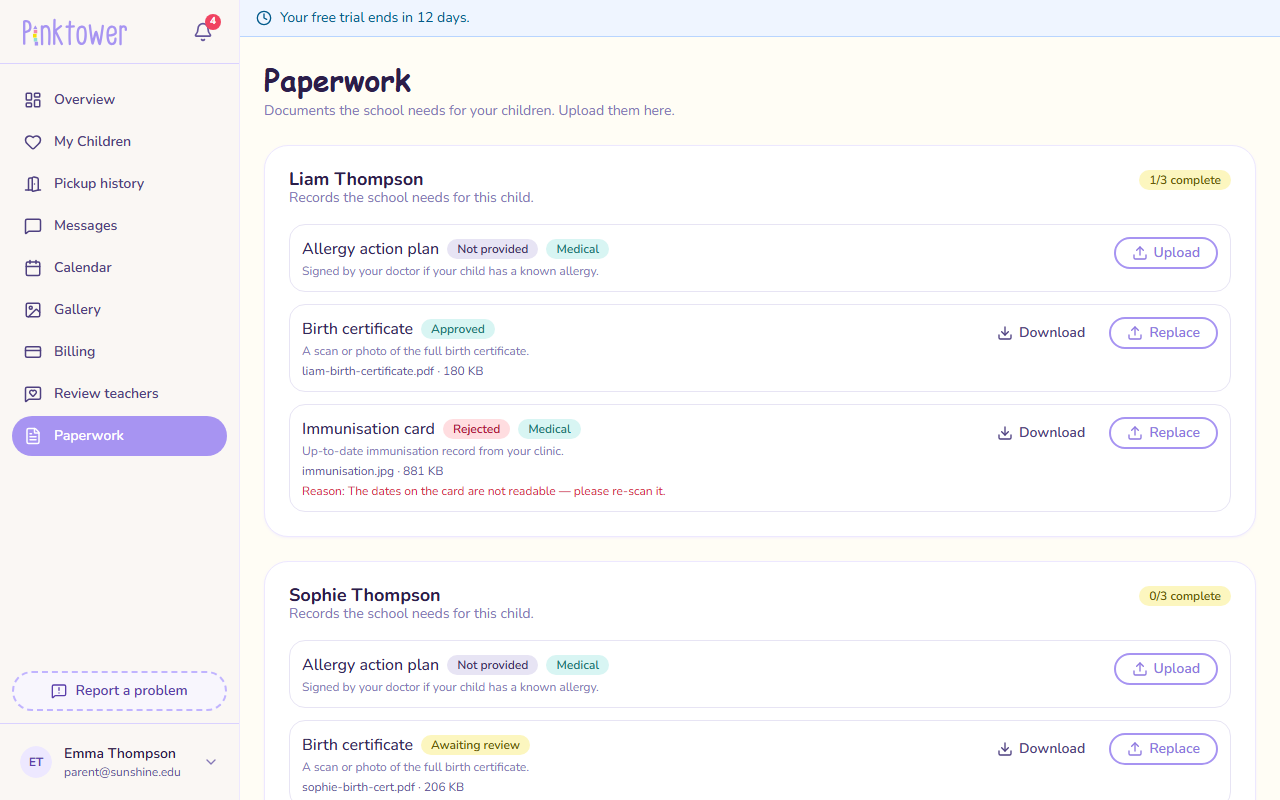
What each status means
| Status | Meaning |
|---|---|
| Not provided | Nothing uploaded yet |
| Awaiting review | Uploaded. The school has not checked it yet |
| Approved | Accepted by the school. Only an approved document counts as done |
| Rejected | Not accepted. The reason is shown underneath, so you can upload a better copy |
Each child's card shows how many documents are done, such as 2/3 complete.
Upload a document
- Open Paperwork in the sidebar.
- Find the document on your child's card.
- Press Upload. If you have uploaded it before, the button says Replace.
- Press Select a file… and choose the file.
- Press Upload.
The document now shows Awaiting review until the school checks it.
You can also upload from your child's own page: open My Children, choose the child, and use the Documents card.
You can upload a document for a family, for example a paper copy they handed in.
- Open Students in the sidebar and choose the child.
- On the Documents card, press Upload (or Replace) next to the document.
- Press Select a file… and choose the file.
- Press Upload.
Then approve it, as described in Check who is missing documents.
You can upload a PDF, an image (such as a photo or scan) or a Word document, up to 10 MB. If a scan is too big, scan it again at a lower quality or take a photo of it instead.
If the document was rejected, the upload window reminds you why.
Replacing a document sends it back for review
Uploading a new copy of a document, even an approved one, changes it back to Awaiting review until the school checks it again.
Download a document
Press Download next to any document that has been uploaded. The file saves to your device.
Emails and reminders about documents
You are notified, and emailed, when:
- the school starts requiring a new document for your child
- a document is rejected, with the reason
- the school sends a reminder about documents still outstanding
The link in a document email opens Paperwork, asking you to sign in first if you need to. The school can send reminders more than once. Uploading the missing documents is what stops them.
Next steps
- Health information and allergies: tell the school about allergies.